Guardians
Parent and guardian directory. Link contacts to learners so fee reminders and family details appear on profiles.
Who can use this
- ADMIN
Path
/admin/guardians
Dependencies
- Learners should already exist (Students or New Admission).
- A guardian row alone does not create a parent portal login - invite / credentials are separate.
- Accurate phone and email matter for fee reminder email (not carrier SMS).
Screenshot
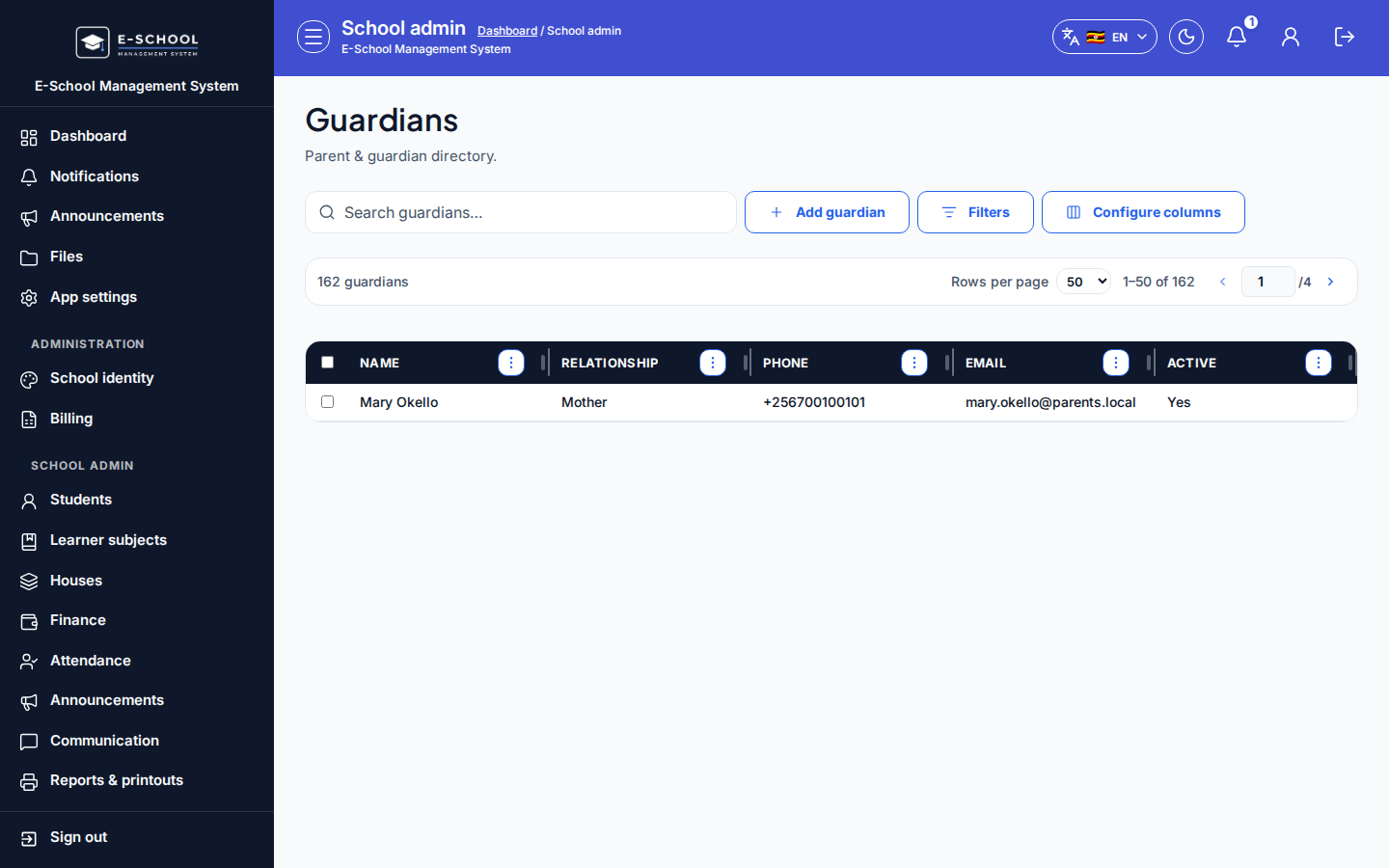
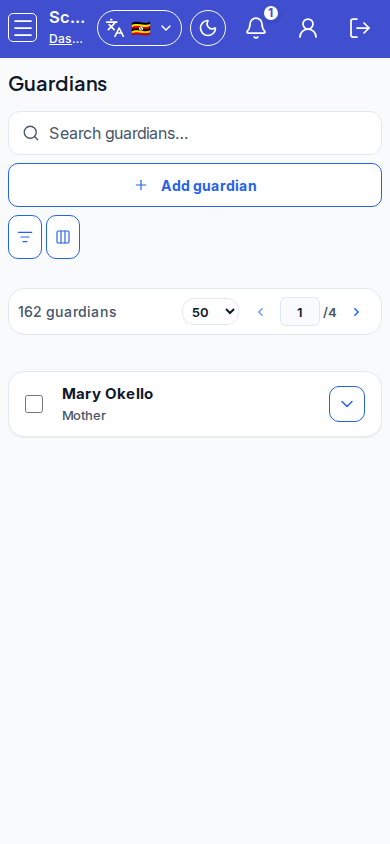
Steps
- Open Guardians at
/admin/guardiansas ADMIN.
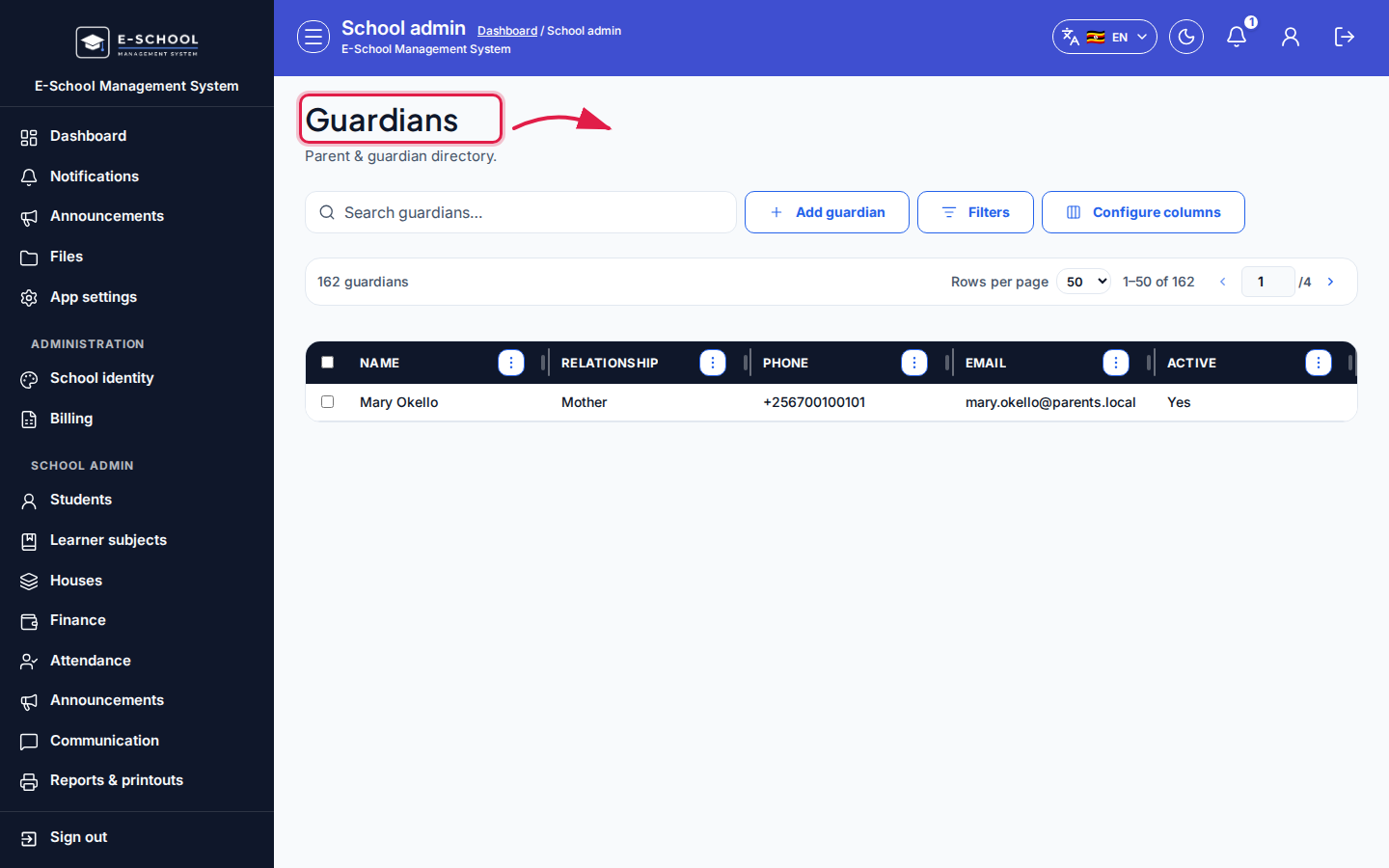 Desktop - focus for step 1
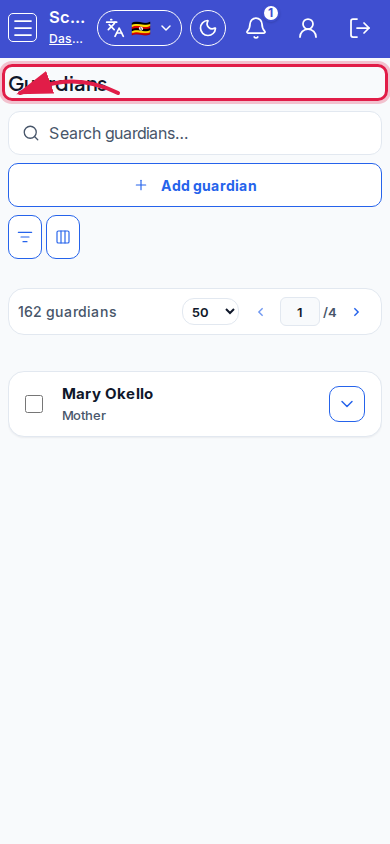 Mobile - focus for step 1
- Click Add guardian, enter name and contact fields, then save.
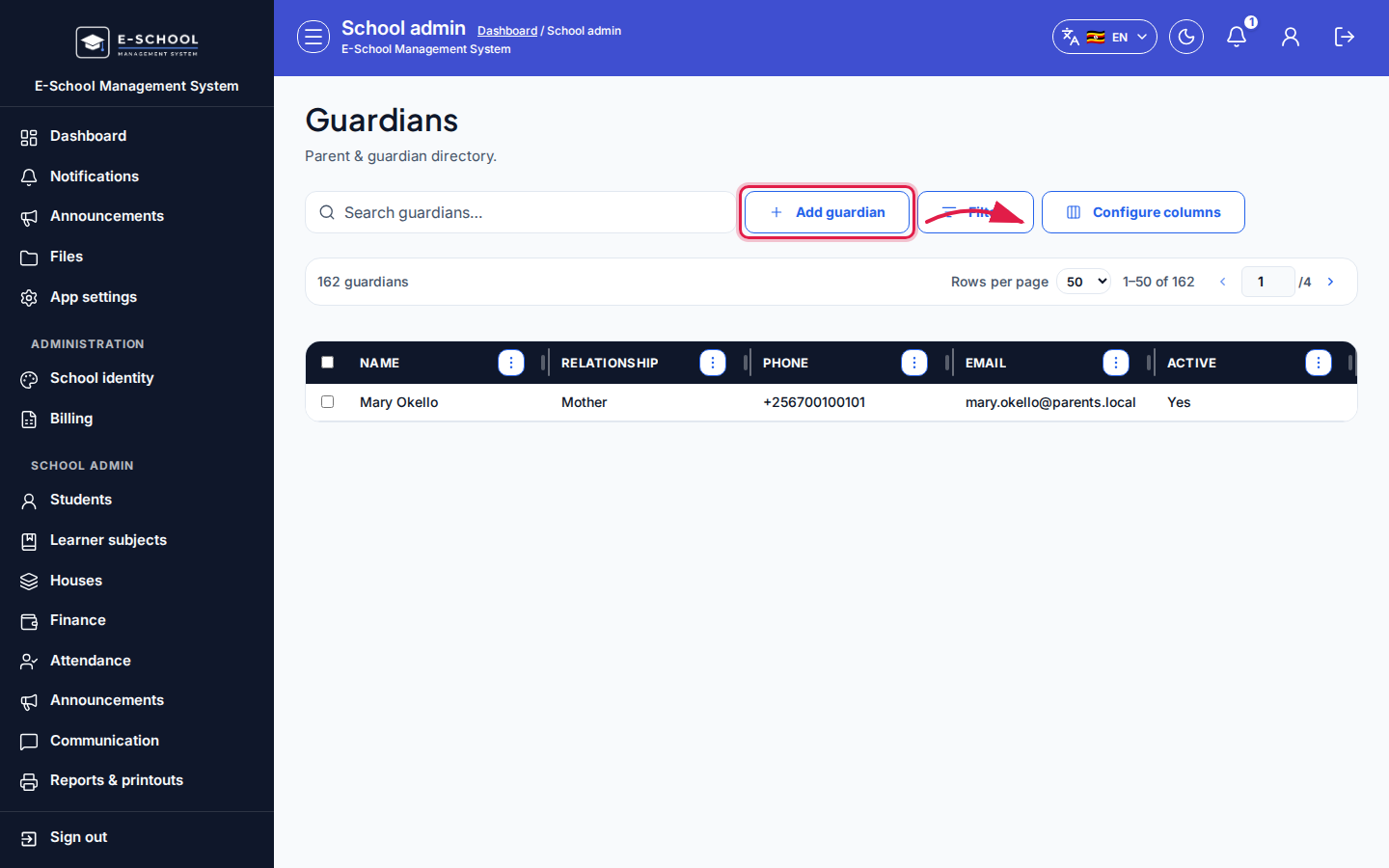 Desktop - focus for step 2
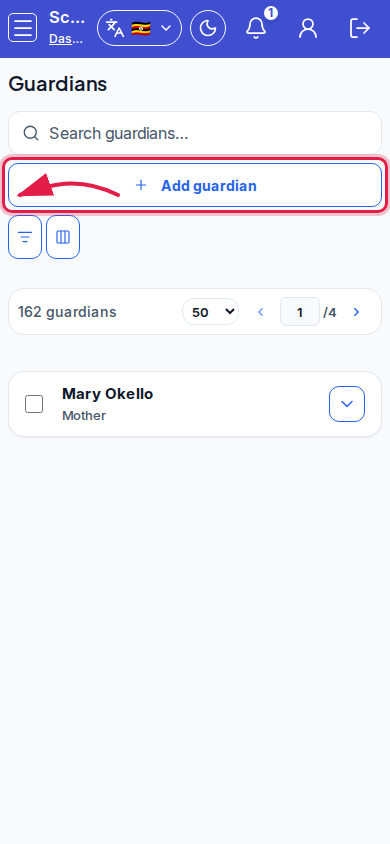 Mobile - focus for step 2
- Link the guardian to the correct learner(s) from the student profile or guardians workflow so the family shows on the register.
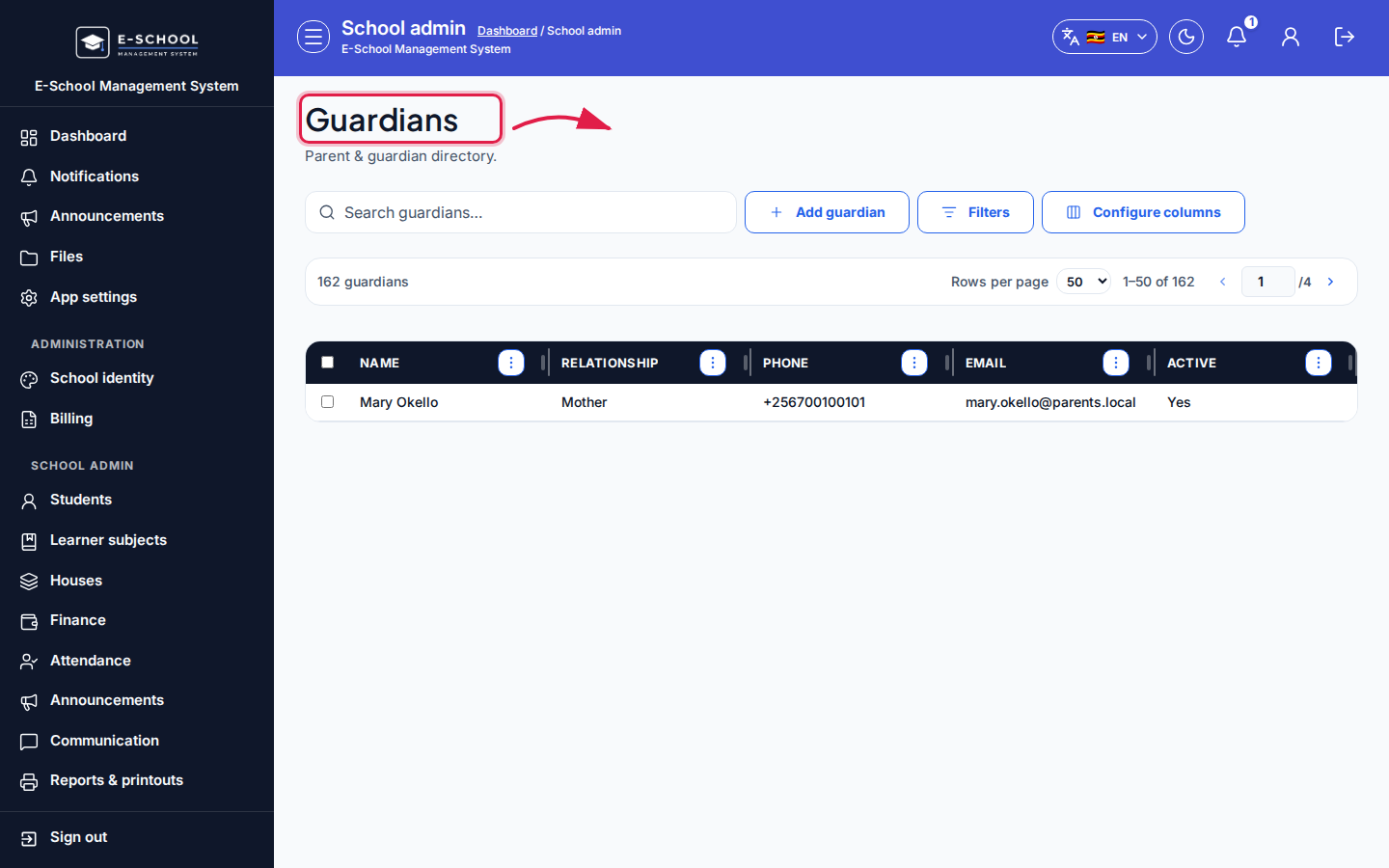 Desktop - focus for step 3
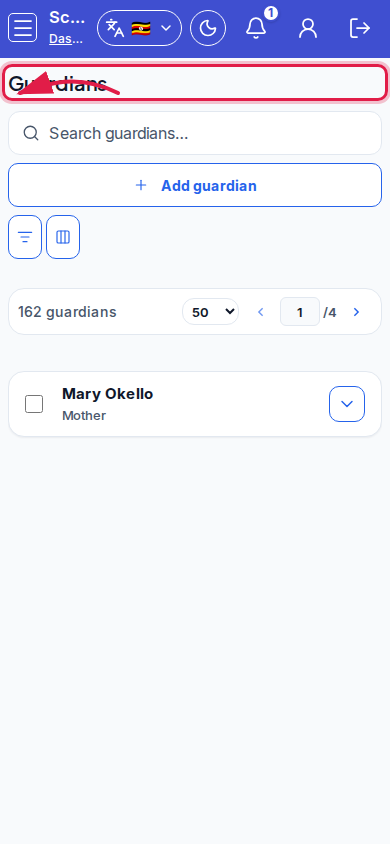 Mobile - focus for step 3
- Use Configure columns and search when cleaning duplicate contacts.
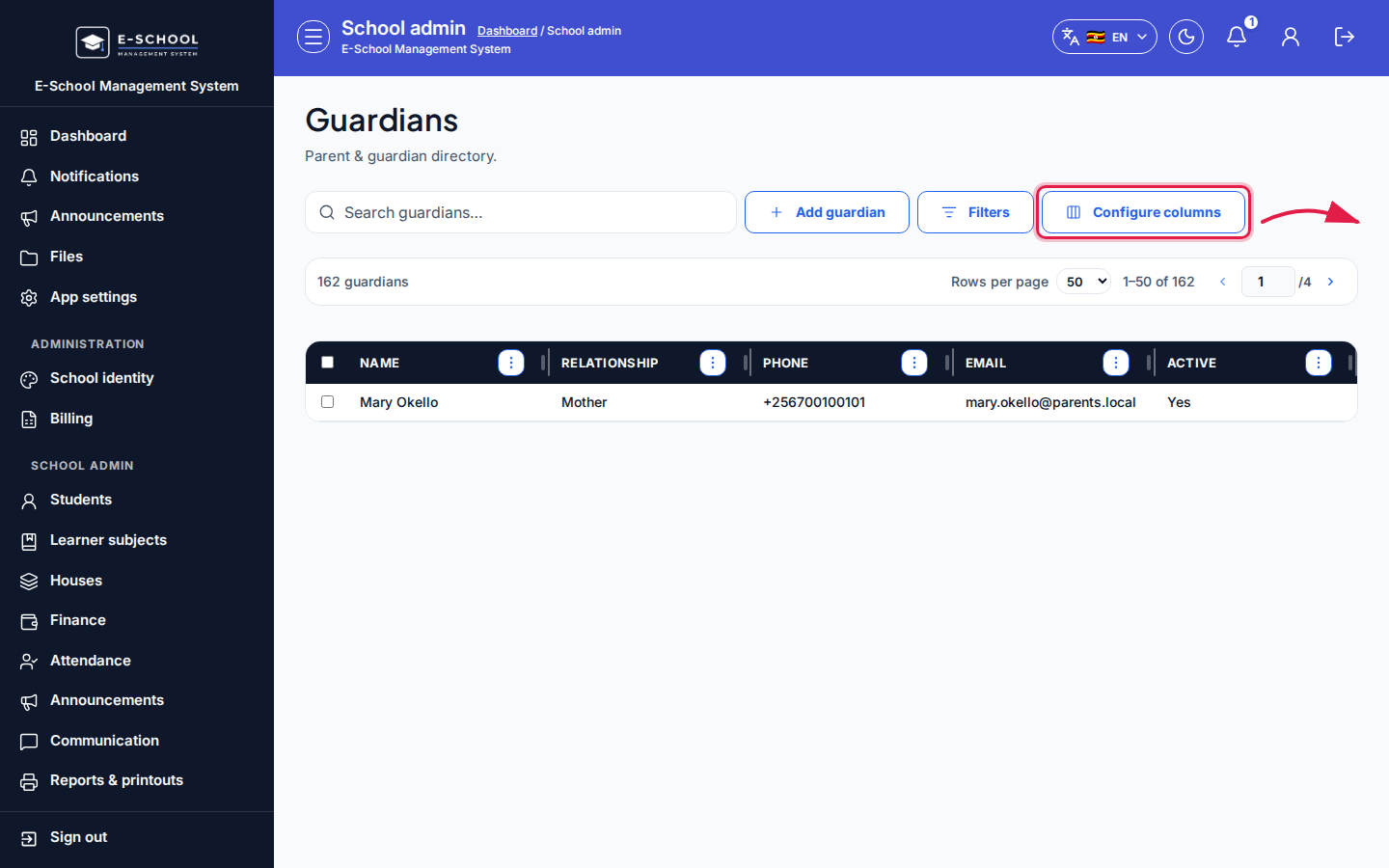 Desktop - focus for step 4
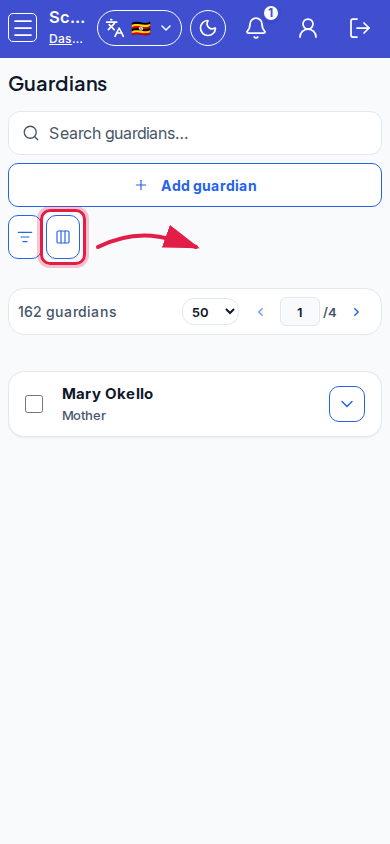 Mobile - focus for step 4
- Deactivate obsolete guardians instead of leaving wrong phones on fee reminder lists.
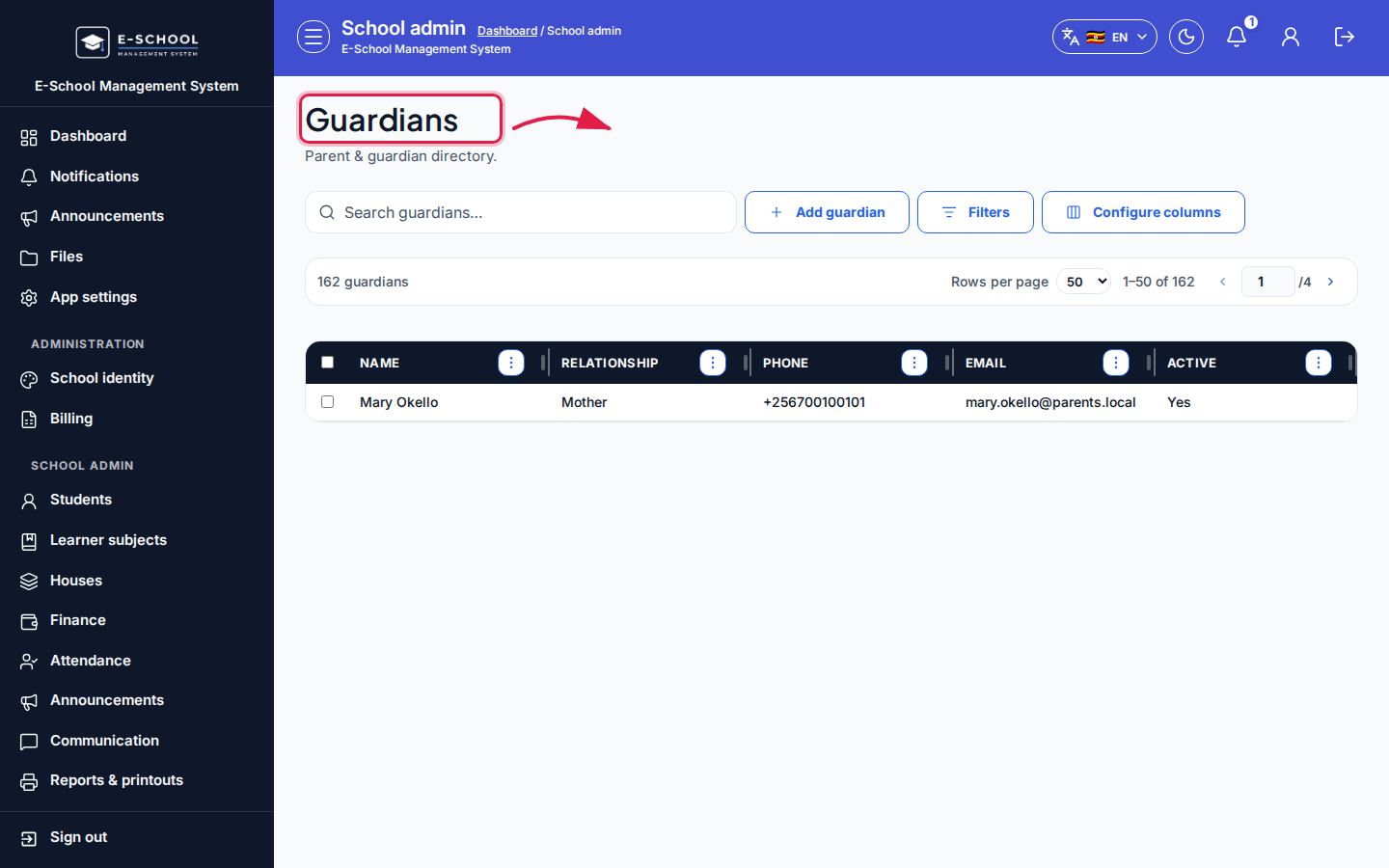 Desktop - focus for step 5
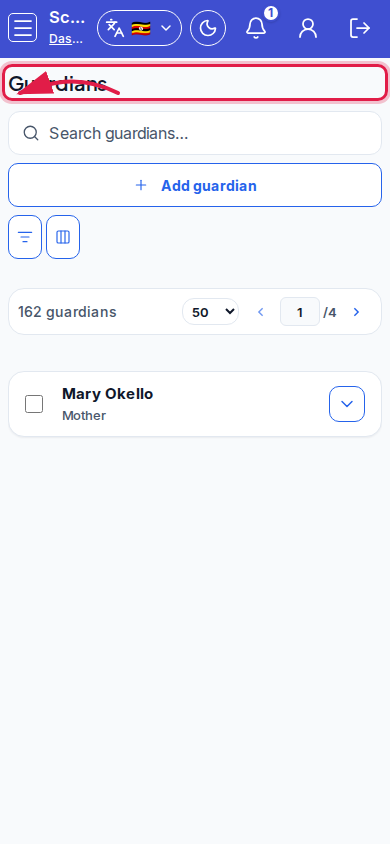 Mobile - focus for step 5
Fields and actions
- Add guardian / Edit / Deactivate
- Search guardians… / Configure columns
- Name, phone, email, linked learners
- Manage from student profile when linking after admit
Common mistakes
- Wrong phone so office cannot reach the family
- Expecting parent portal login immediately after creating a guardian row
- Duplicate guardian rows for the same parent across siblings
- Leaving deactivated contacts selected for reminders