Staff & users
Combined hub for the staff directory (Staff) and portal logins (Accounts). Prefer this page over the older standalone Teachers/Users routes.
Who can use this
- ADMIN
Path
/admin/staff-users (Accounts tab: /admin/staff-users?tab=accounts)
Dependencies
- School settings and branding exist (School settings).
- Subjects help when linking teaching specializations (Subjects).
- Copy School ID + User ID + temporary password once from the credentials dialog - they are shown once.
Screenshot
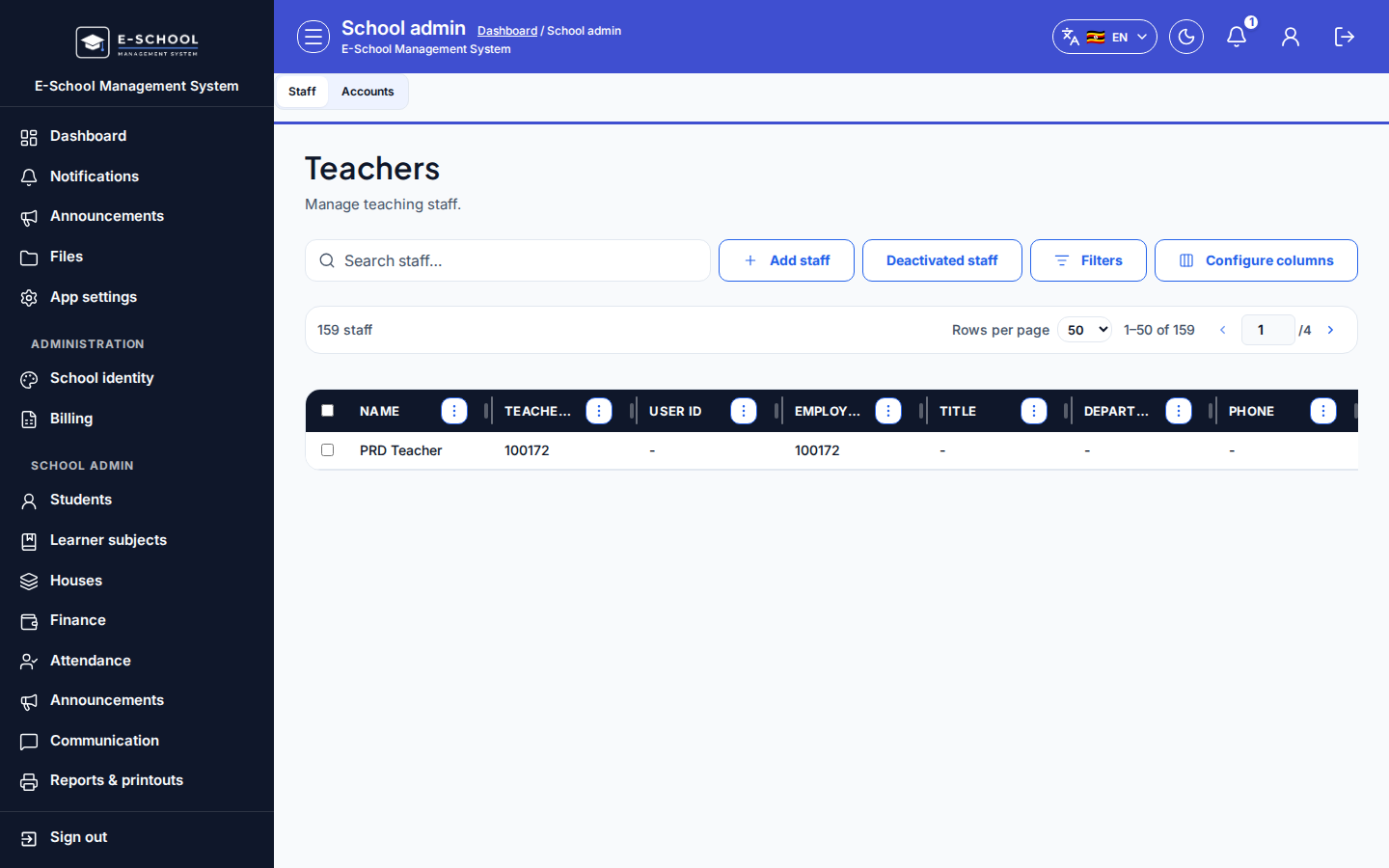
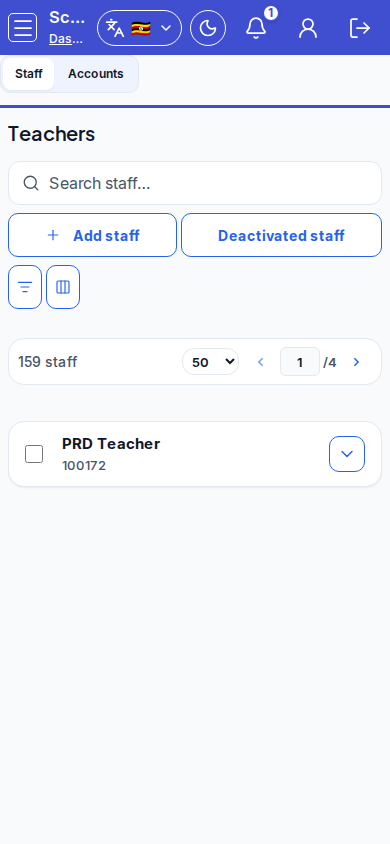
Steps
- Open Staff & users at
/admin/staff-usersas ADMIN.
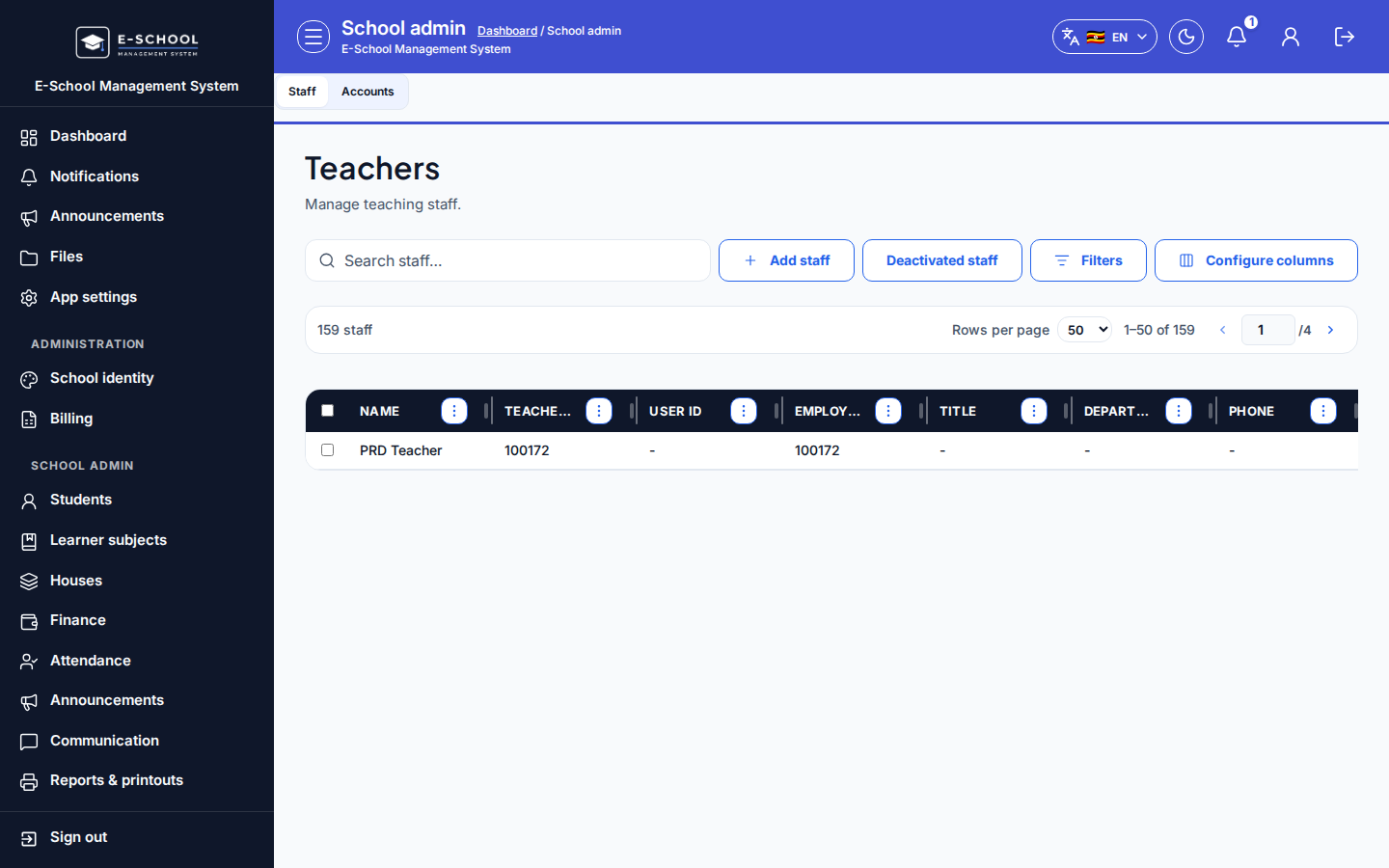 Desktop - focus for step 1
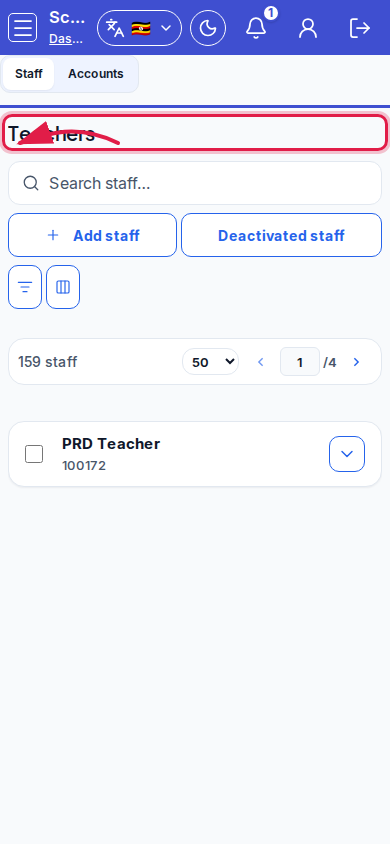 Mobile - focus for step 1
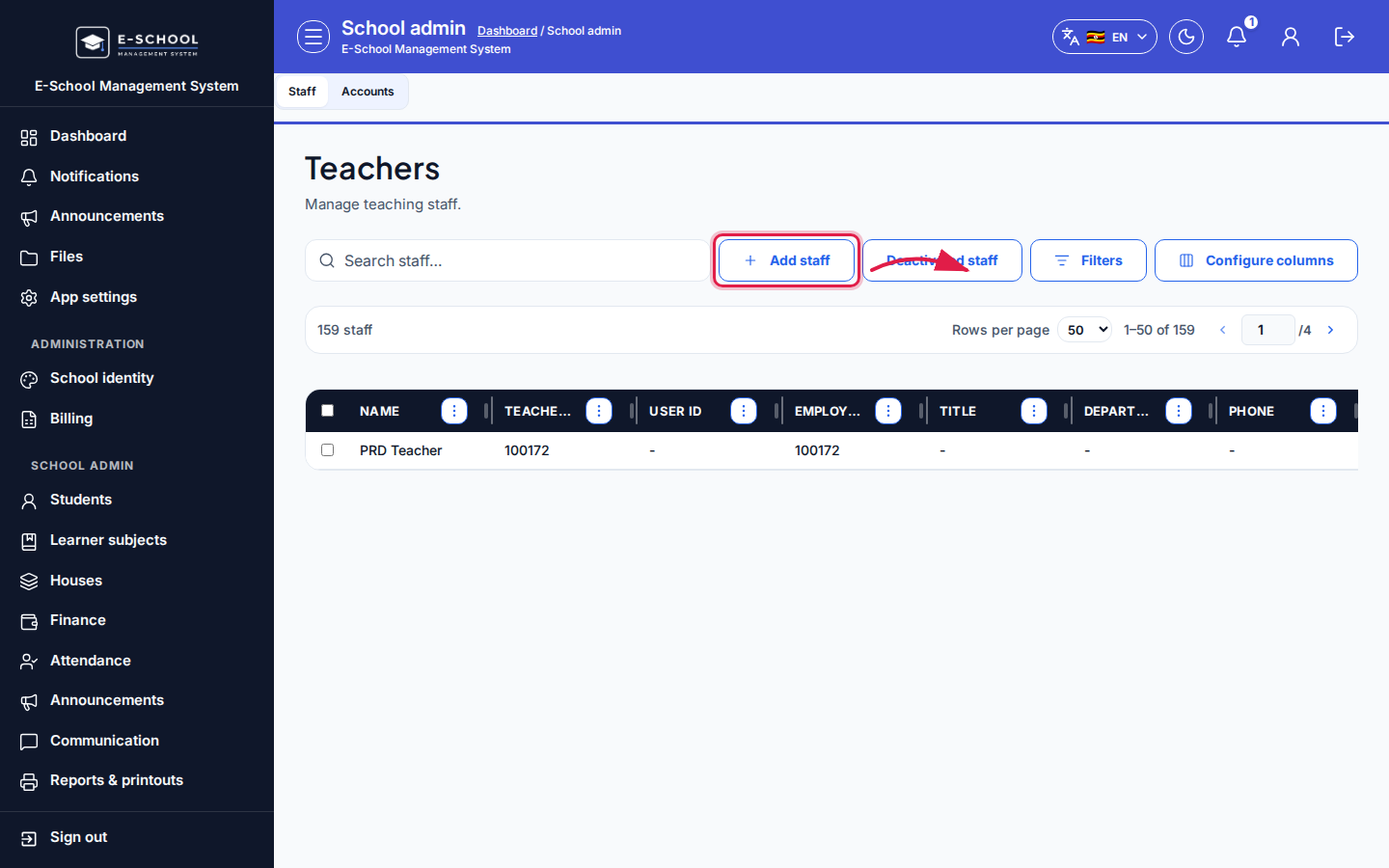
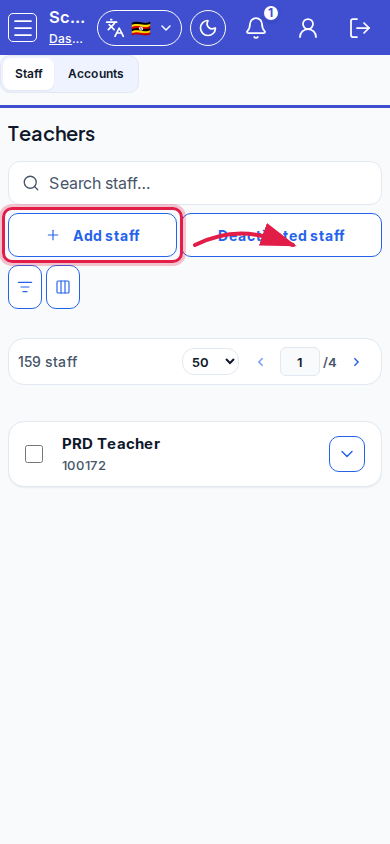
- On the Staff tab, click Add staff. Fill personnel fields (photo required), employment type, subjects, then Save staff. Link a login account when the person needs portal access.
 Desktop - focus for step 2
 Mobile - focus for step 2
- Switch to the Accounts tab (
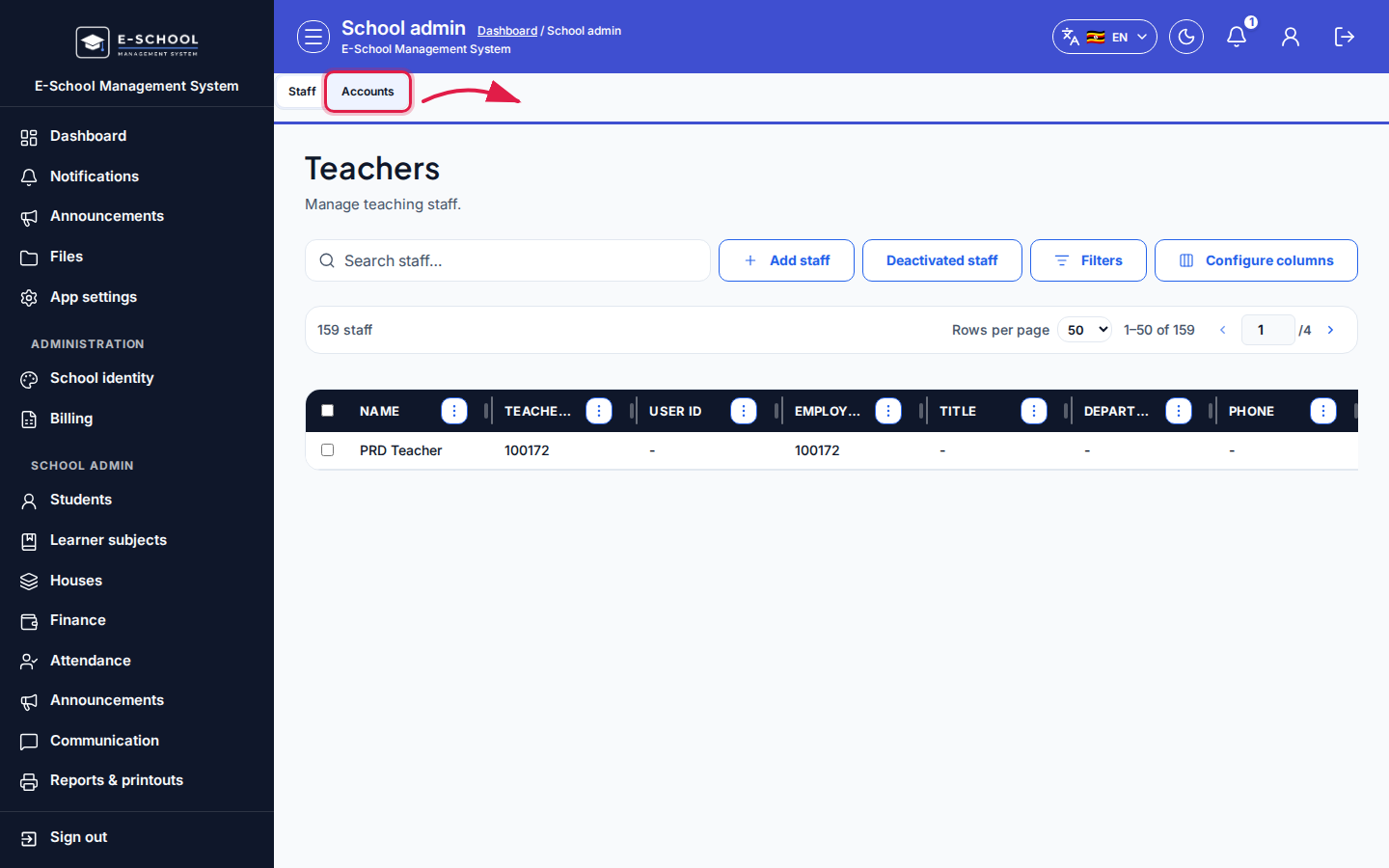
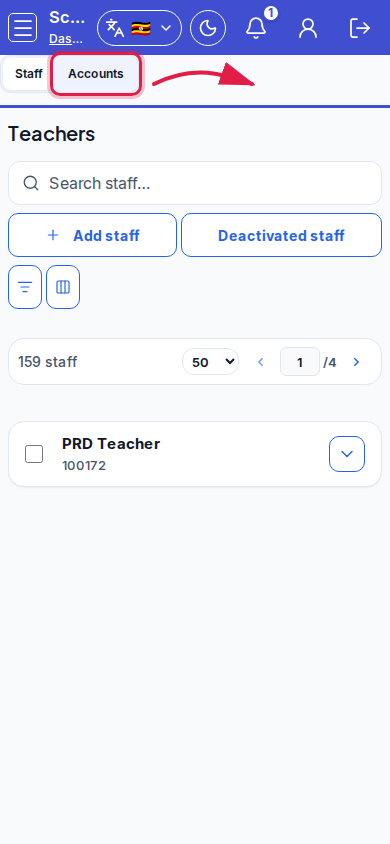
?tab=accounts). Click Create user, pick role (Teacher, Secretary, Finance, …), optional email, photo, then save.
 Desktop - focus for step 3
 Mobile - focus for step 3
- When the credentials dialog appears, copy School ID, User ID, and temporary password immediately - then share with the staff member.
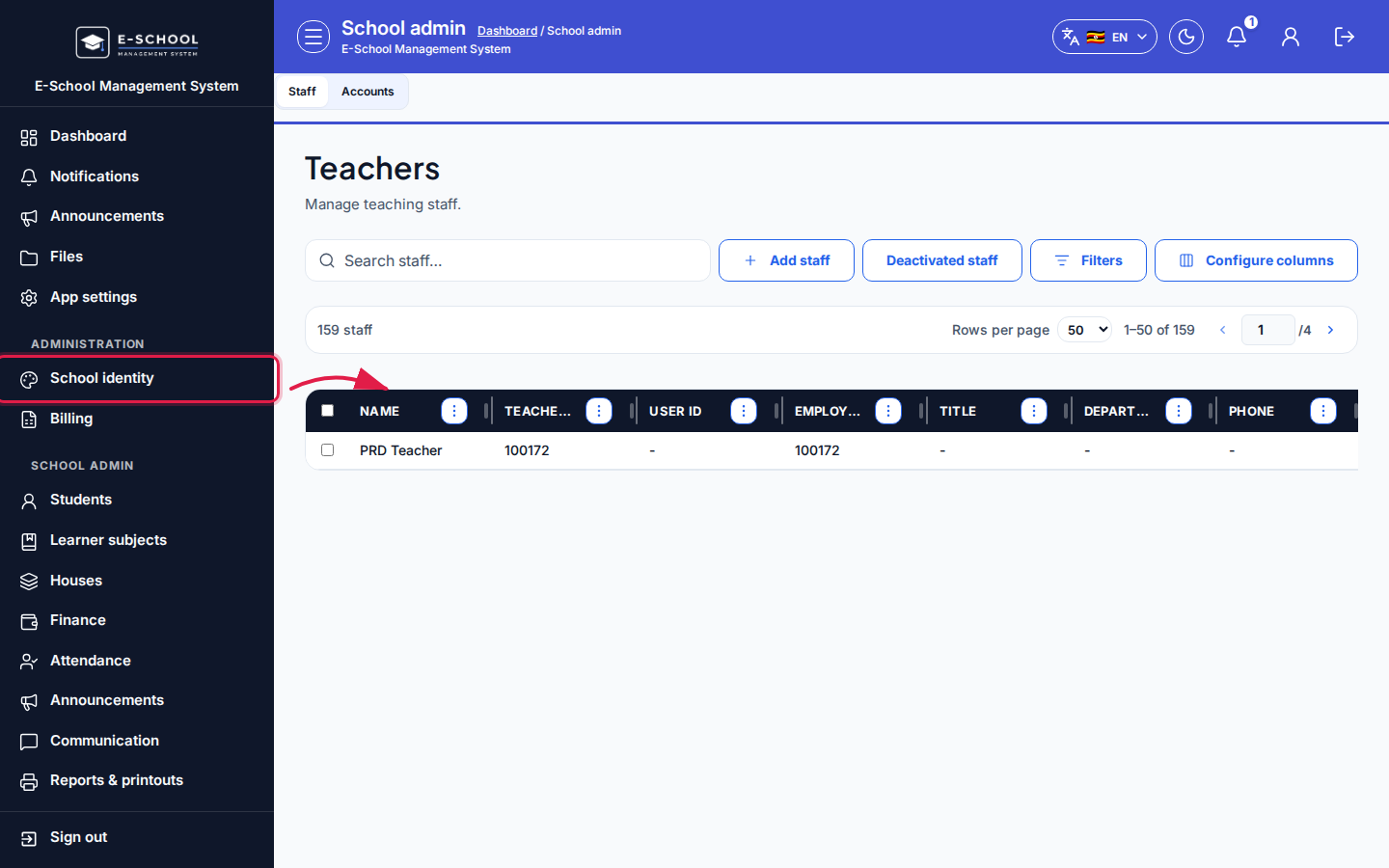 Desktop - focus for step 4
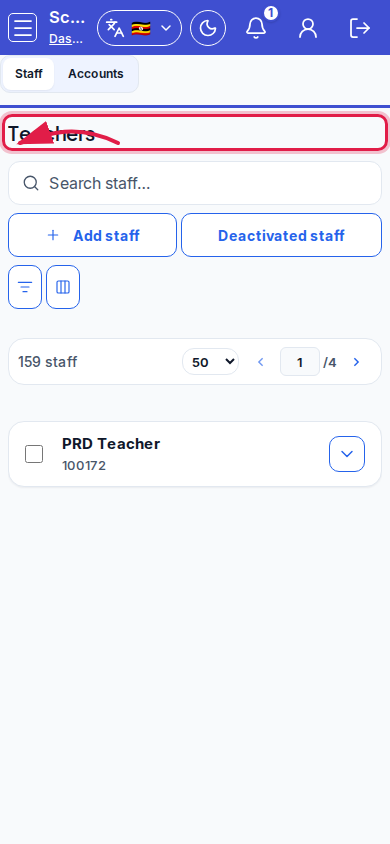 Mobile - focus for step 4
- Use Permissions on an account for extra grants (for example Teacher + office rights) without a second login.
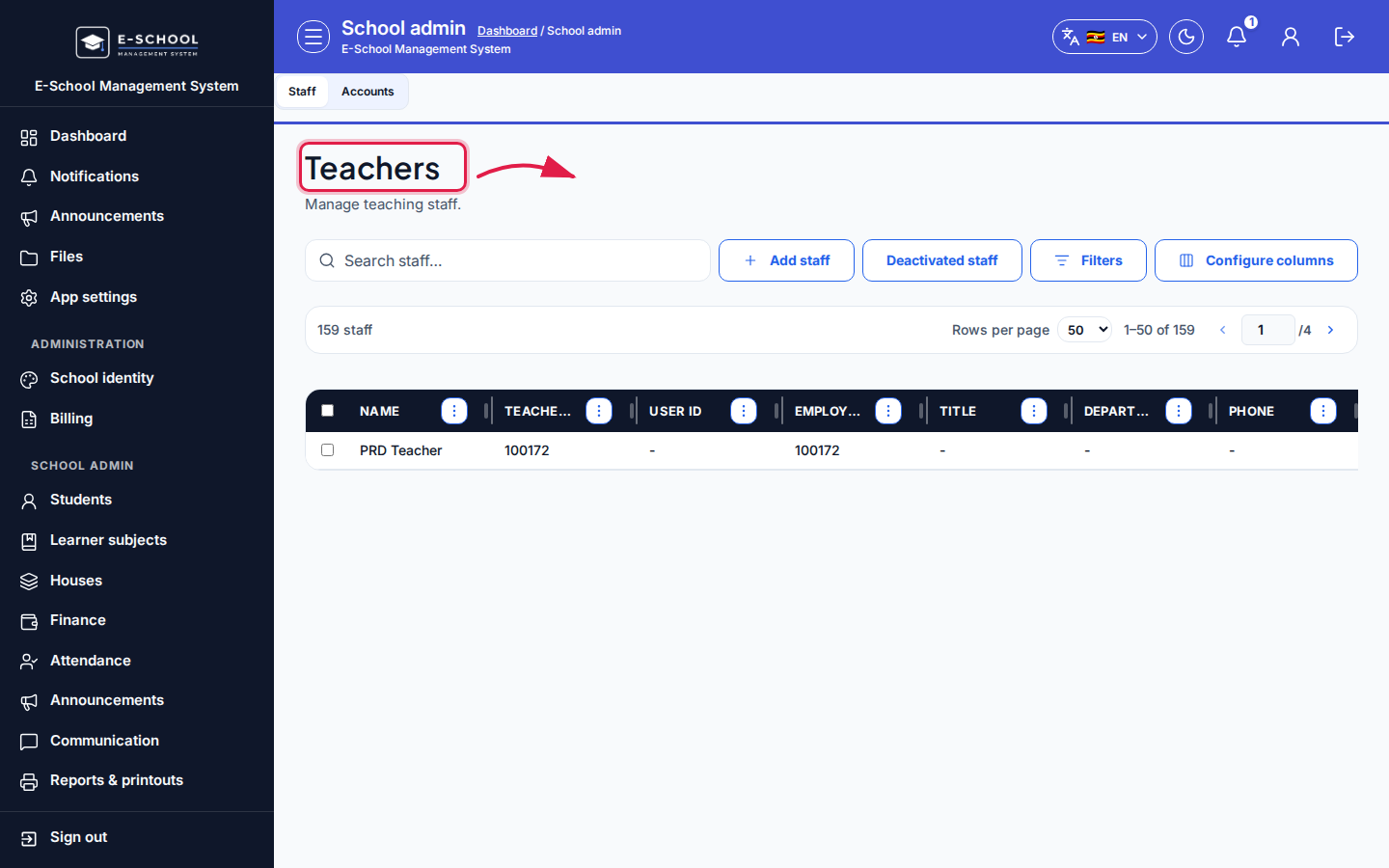 Desktop - focus for step 5
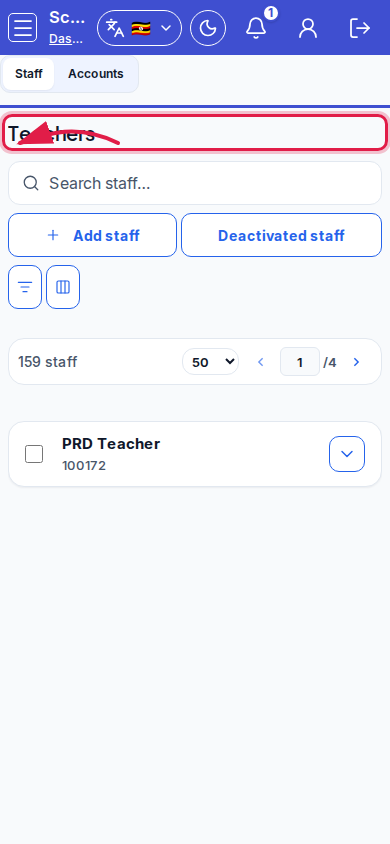 Mobile - focus for step 5
- Prefer Deny access / Deactivate over deleting rows. Toggle Deactivated staff when auditing leavers.
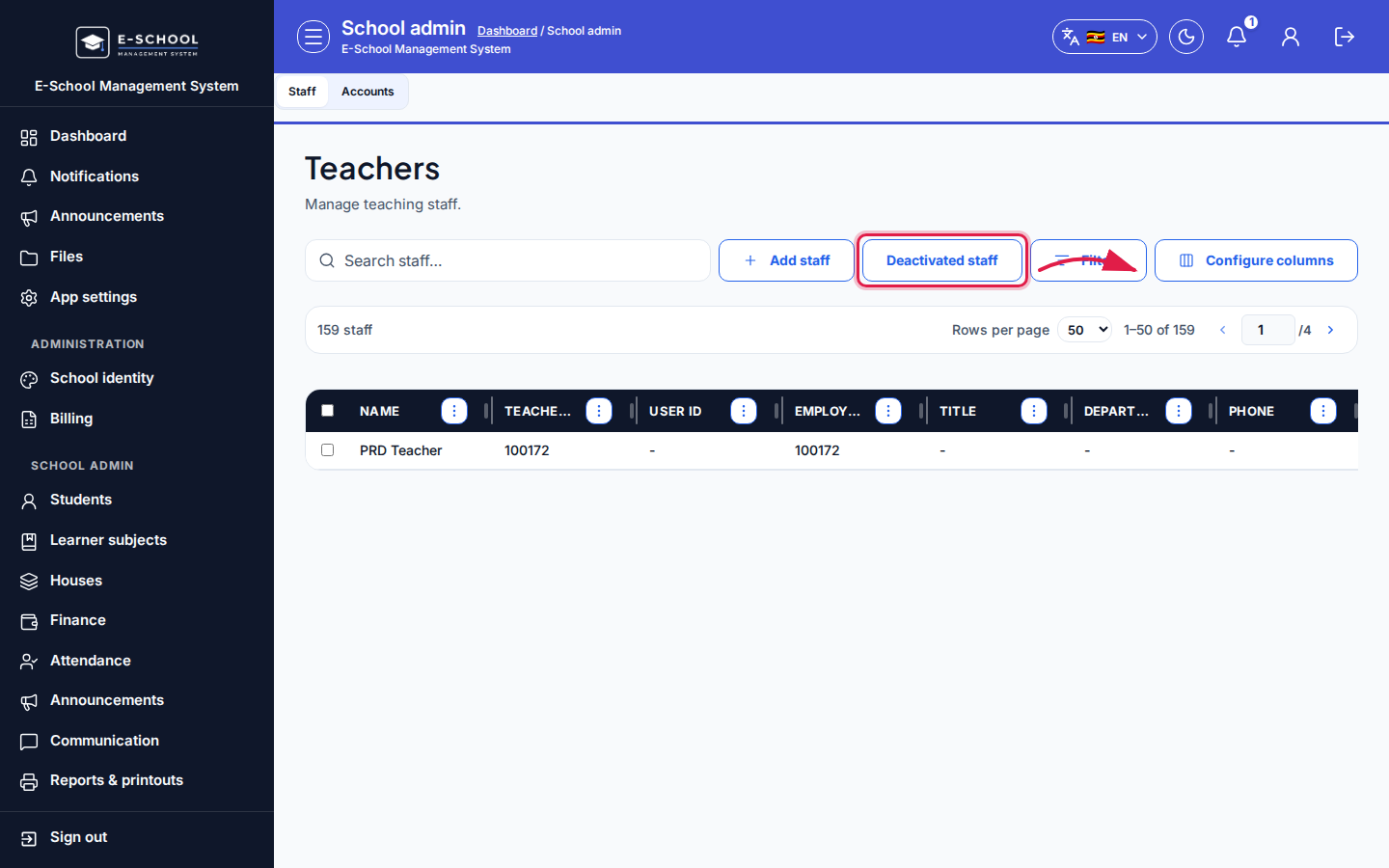 Desktop - focus for step 6
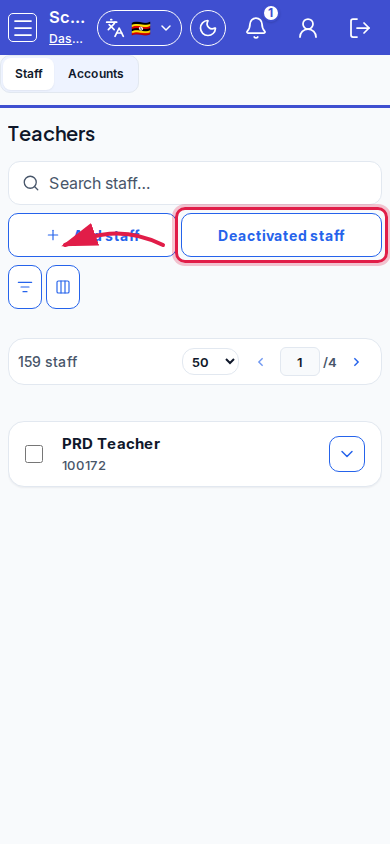 Mobile - focus for step 6
Fields and actions
- Tabs: Staff / Accounts
- Staff: Add staff / Edit / Deactivate / Deactivated staff / Linked account / Teacher ID / Subjects
- Accounts: Create user / Edit / Permissions / Deny access / roles
- Configure columns / Search
Common mistakes
- Closing the one-time password dialog without copying IDs
- Confusing Teacher ID (staff public id) with login User ID
- Creating an Accounts login without a Staff row (or the reverse) so timetable/directory look incomplete
- Denying access without telling the person
- Skipping required photo on create