Admit a learner
Bring a learner onto the active register with class/stream, photo, subjects, guardians, optional house, and issued portal credentials.
Steps
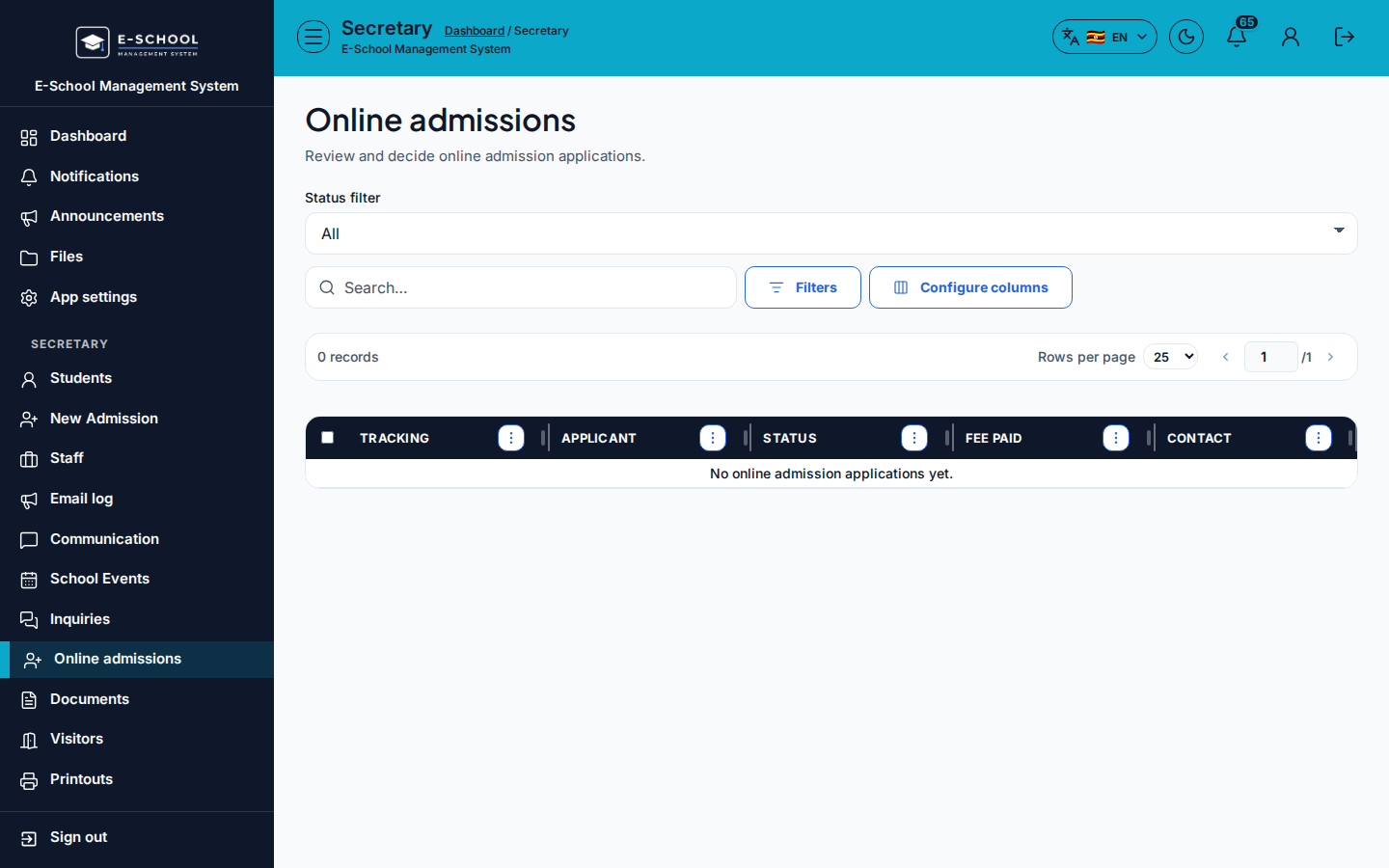
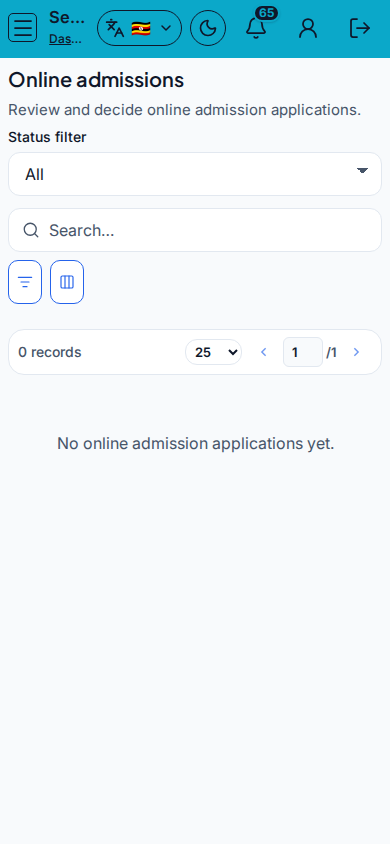
- Optional intake - Online admissions
- Review pending applications and promote ready candidates into admit.
- Tip: inquiries and online admissions are intake only; the learner is not active until admit finishes.
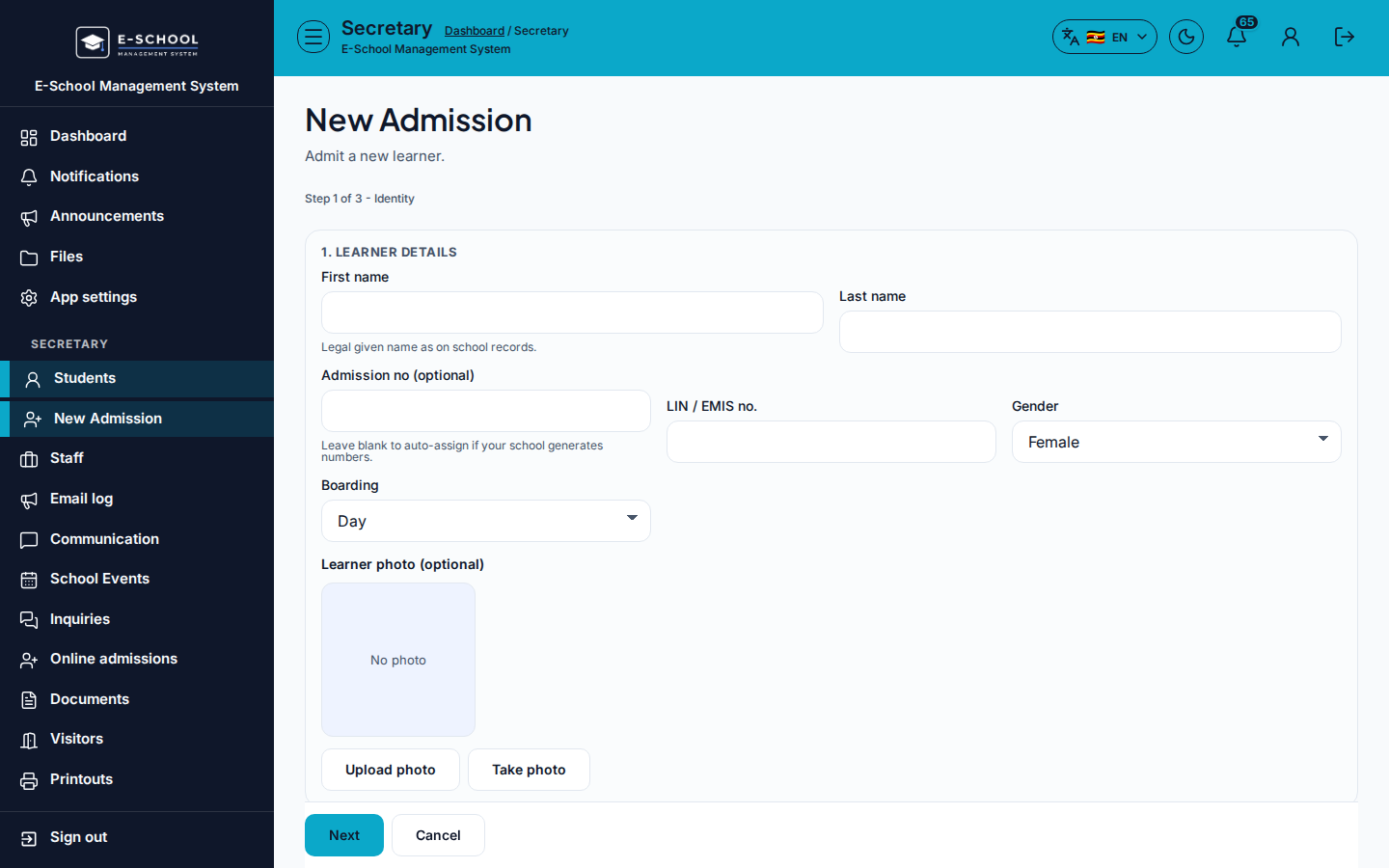
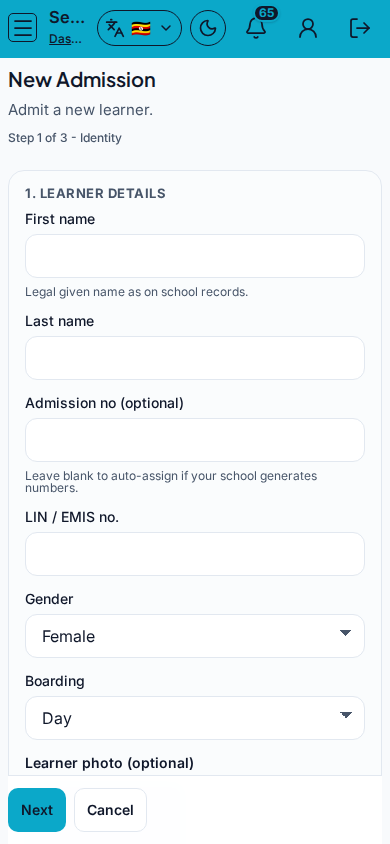
- Admit - New Admission or Admit student on Students
- Choose class and stream, fill identity fields, then Upload photo or Take photo.
- Tip: prefer Admit over inventing admission numbers offline. Wrong class/stream forces a later Move student.
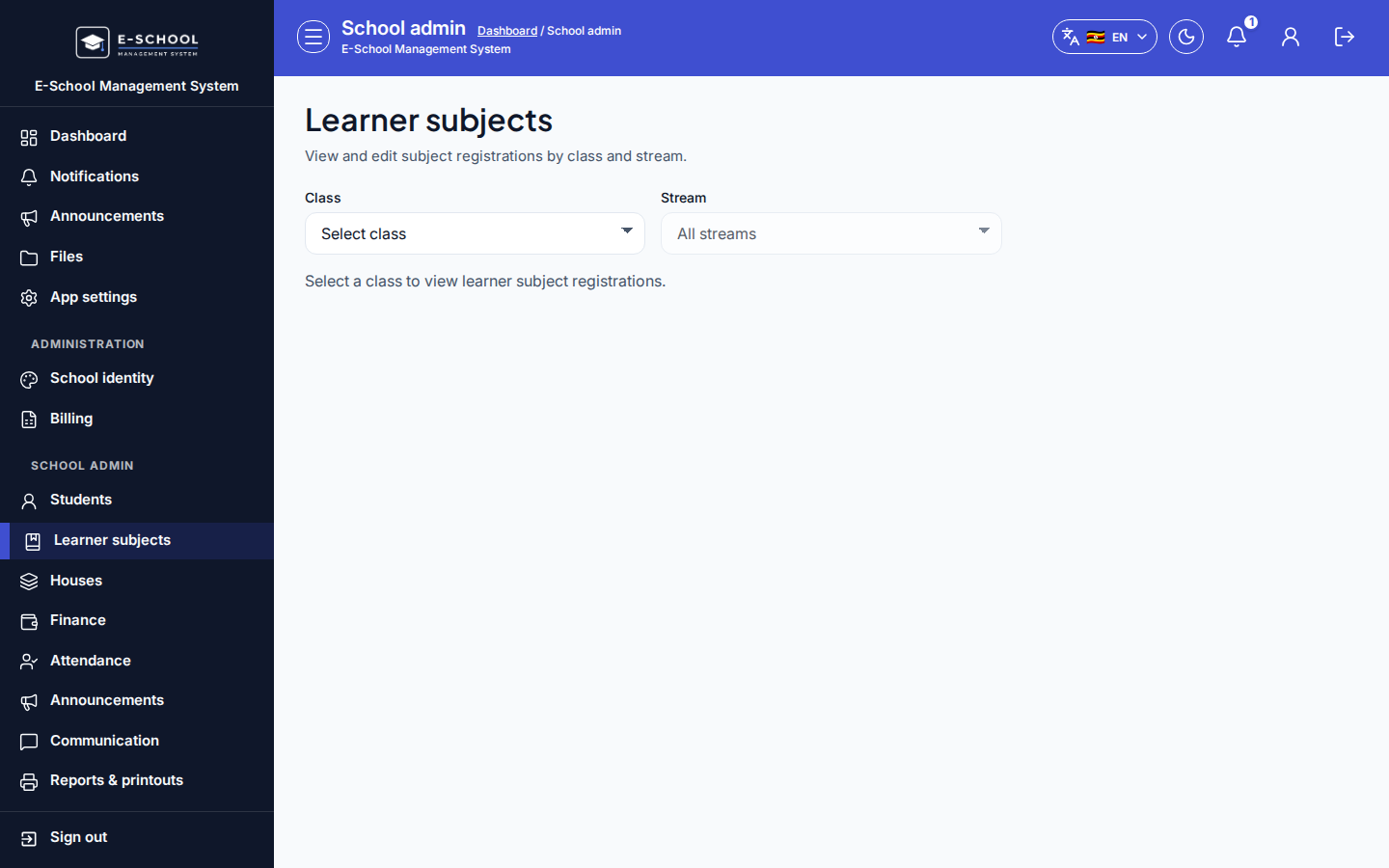
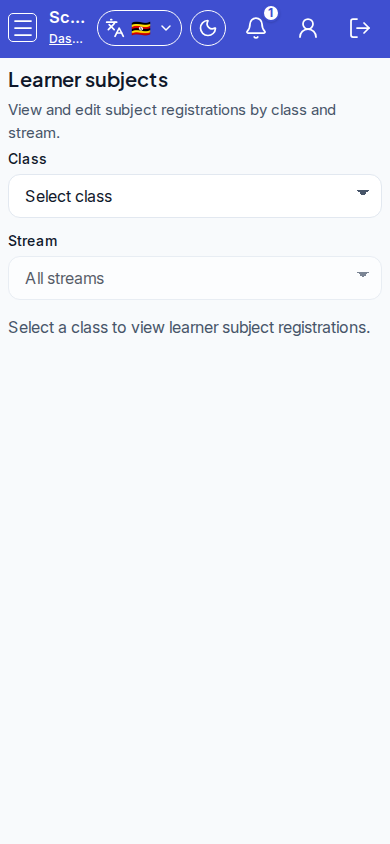
- Learner subjects (
/admin/learner-subjects)- Register compulsory and optional subjects for the active term.
- Tip: empty report cards almost always mean subjects were never registered here.
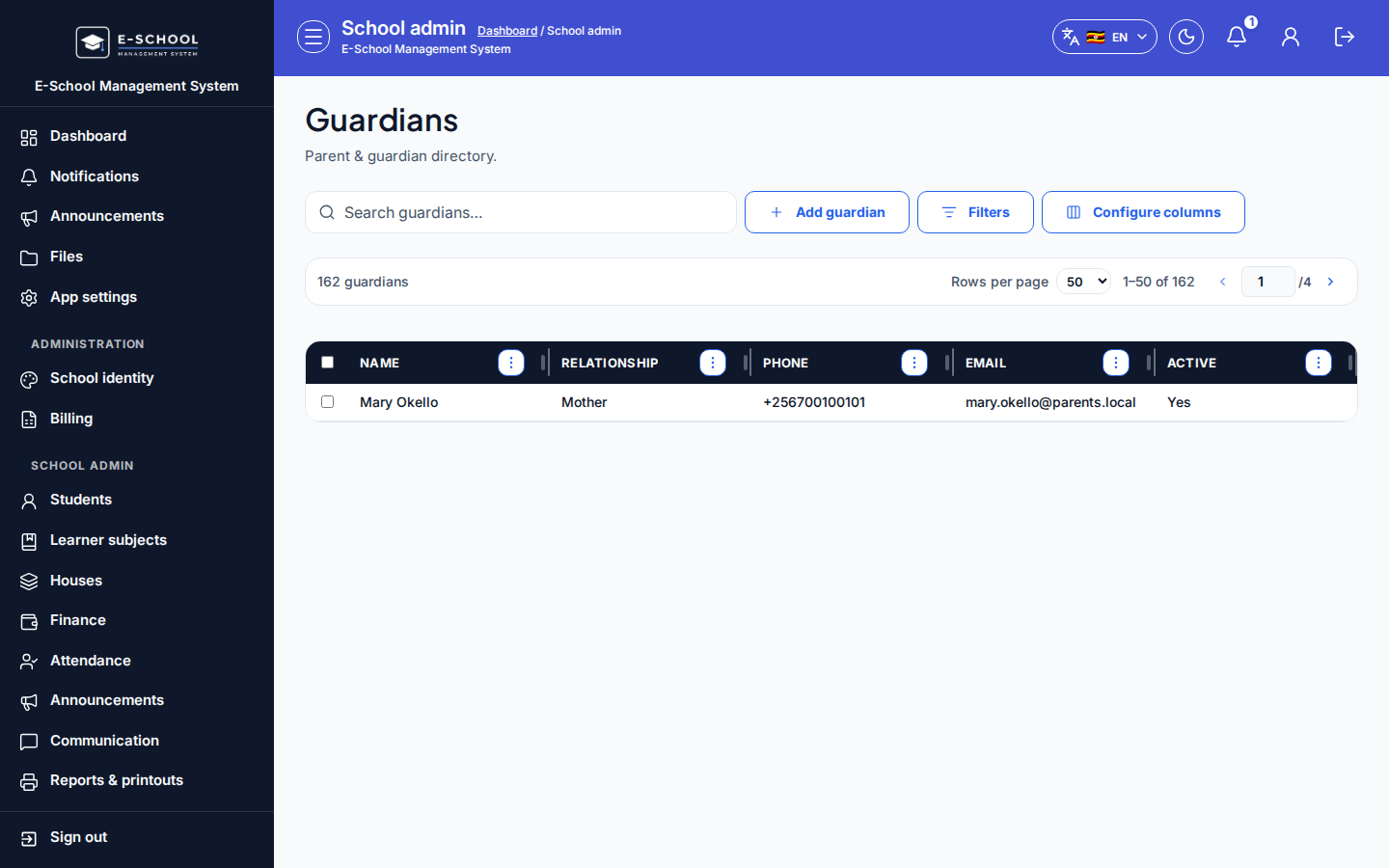
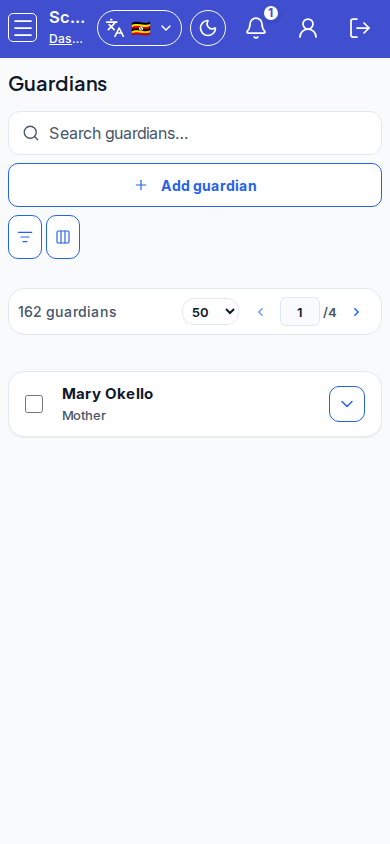
- Guardians (
/admin/guardians)- Add guardian with relationship, phone, and email; link to the learner.
- Tip: a guardian row is not a parent login. Parent invite/credentials are separate. Wrong phone breaks SMS.
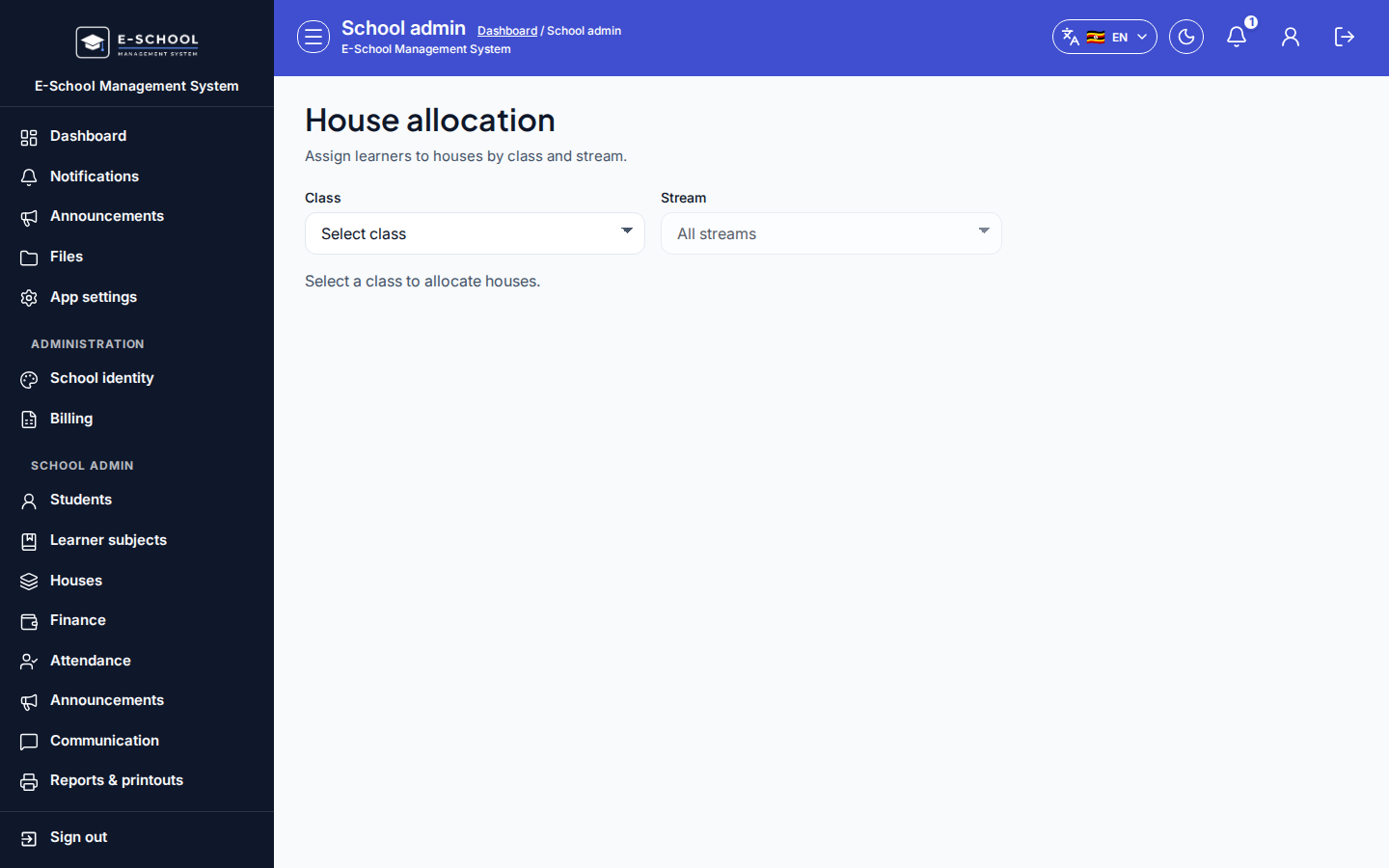
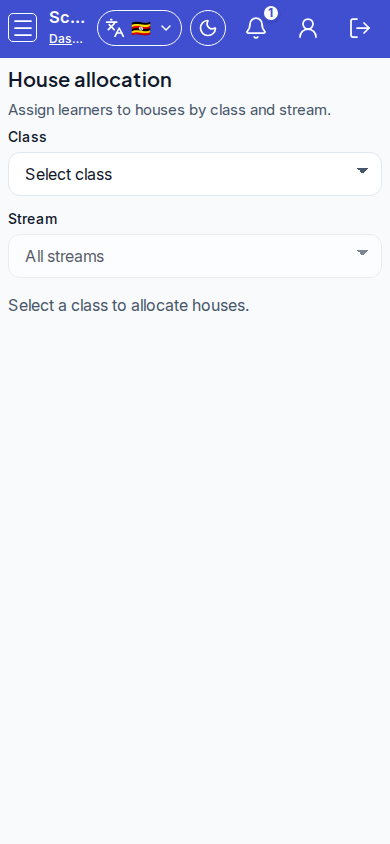
- House allocation (
/admin/house-allocation)- Assign a house after houses exist under Houses.
- Tip: check class/stream filters if the list looks empty.
- Issued credentials
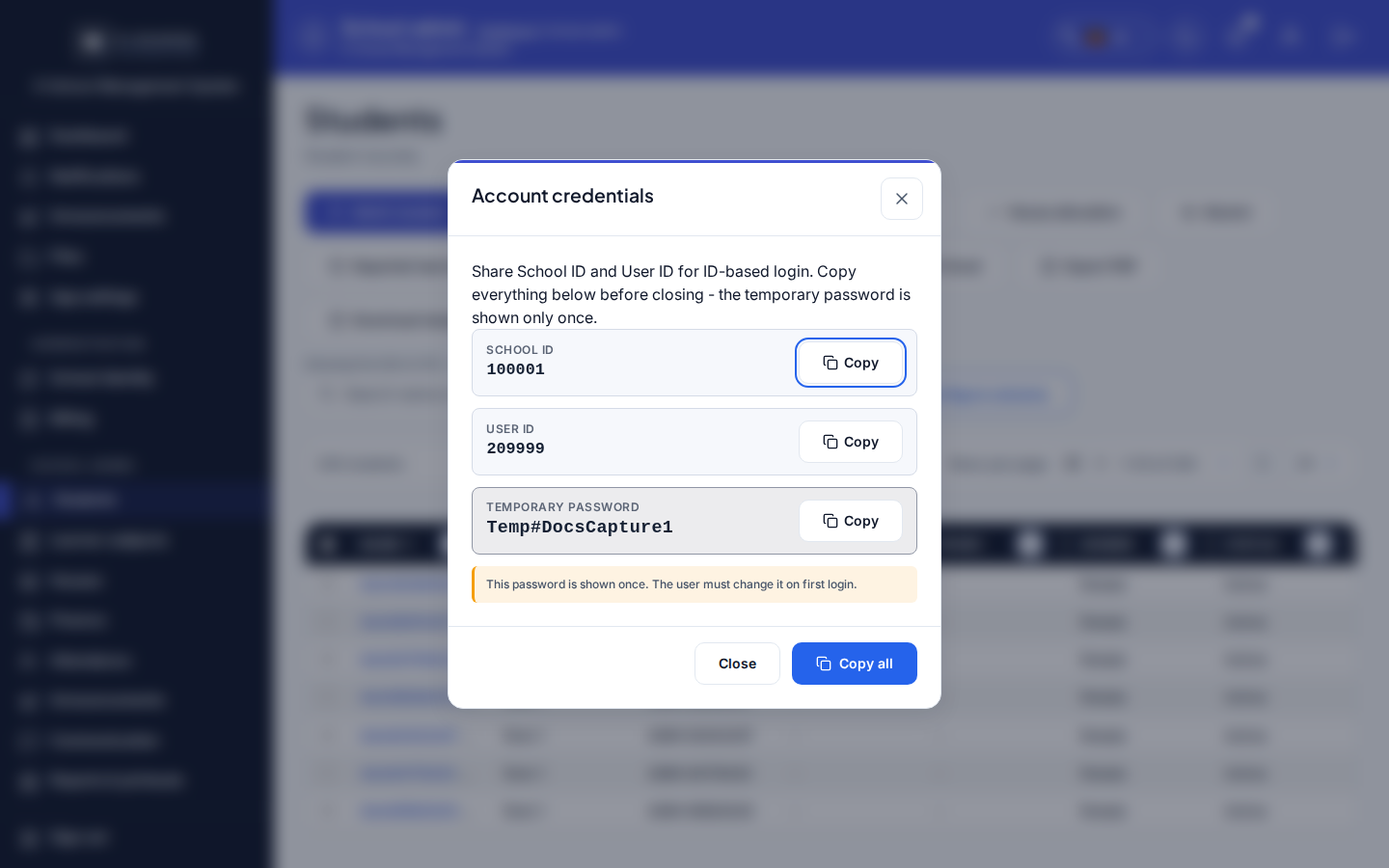
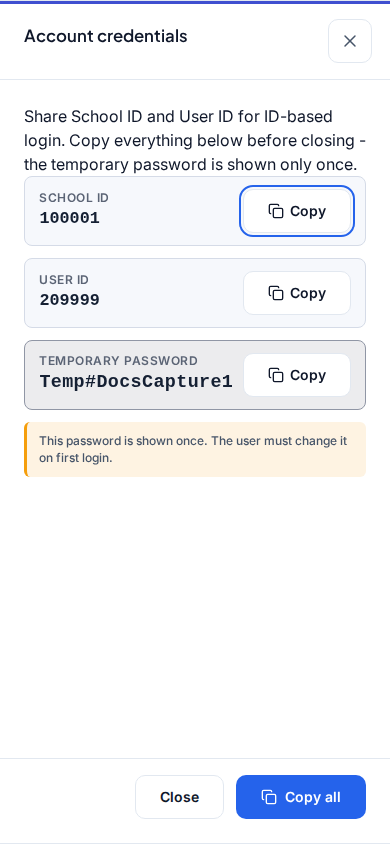
- When the Account credentials (copy now) dialog appears, copy School ID, User ID, and temporary password before Close.
- Tip: hand credentials to the learner/parent using First login.
Role handoff
Secretary or Admin runs admit. Admin finishes Learner subjects, Guardians, and House allocation. Parent invite is separate from admit. Finance should not bill until the learner is on the active register.
Common mistakes
- Skipping photo (cards fall back to gender placeholders)
- Closing credentials without copying IDs and temporary password
- Empty report cards because learner subjects were never registered
- Treating Alumni or Departed as active for fees or attendance
- Import without Download template first