Academic calendar
Define academic years and terms, set the current year/term, and choose which exam types are assessable in each term.
Who can use this
- ADMIN
Path
/admin/academic-calendar
Dependencies
- School identity exists (School settings).
- Open next year only after the prior year dates are correct.
Screenshot
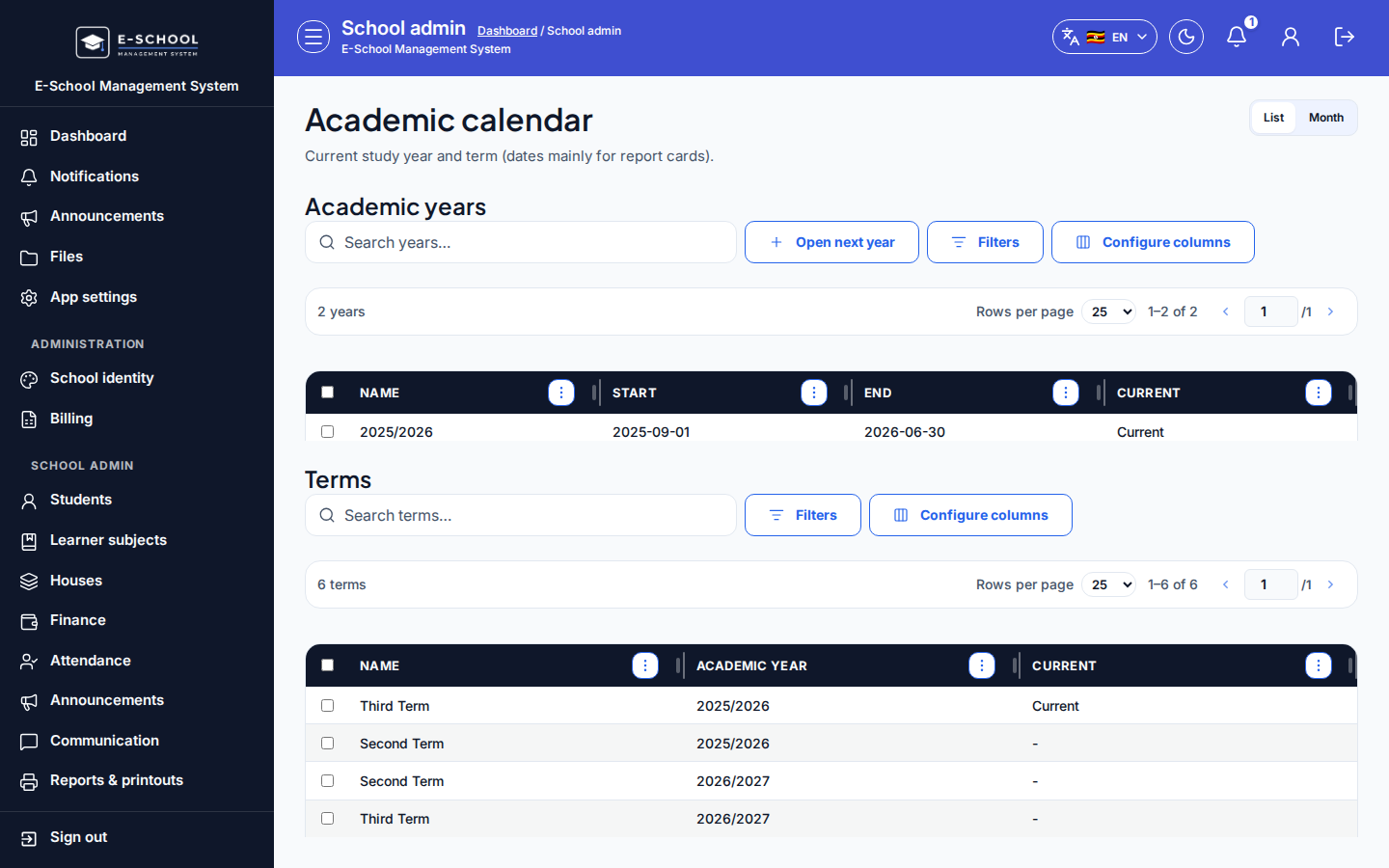
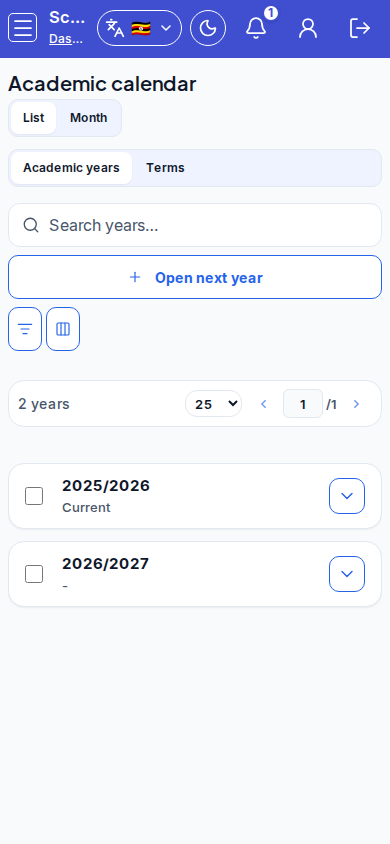
Steps
- Open Academic calendar at
/admin/academic-calendaras ADMIN.
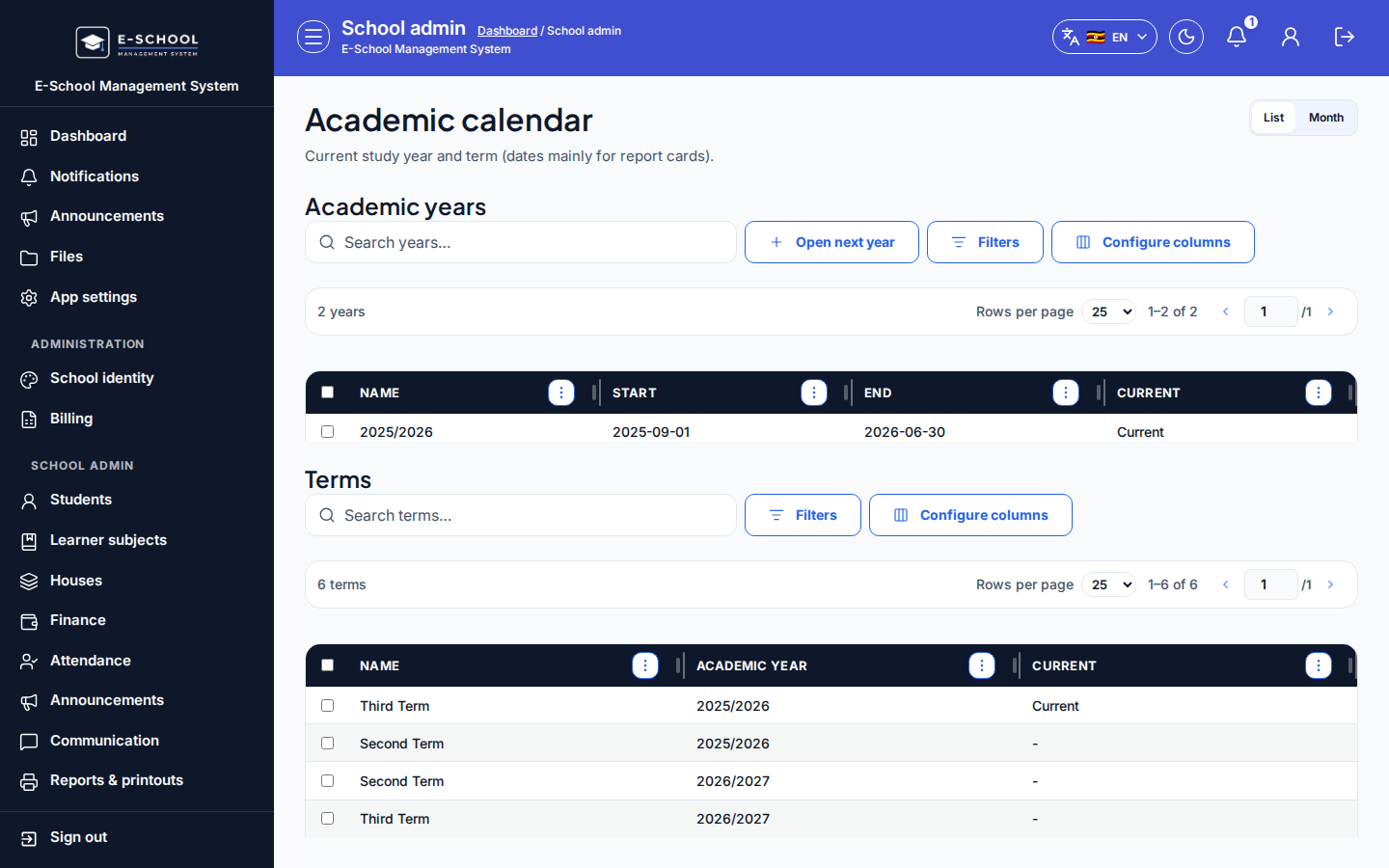 Desktop - focus for step 1
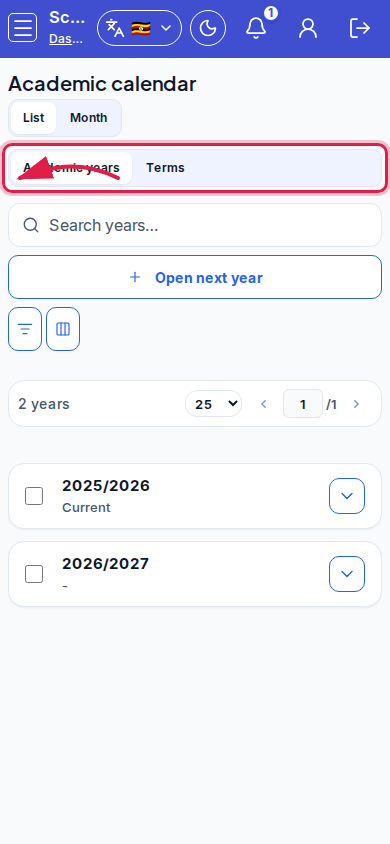 Mobile - focus for step 1
- Use List (years + terms) or Month view. On mobile List, switch Academic years / Terms tabs.
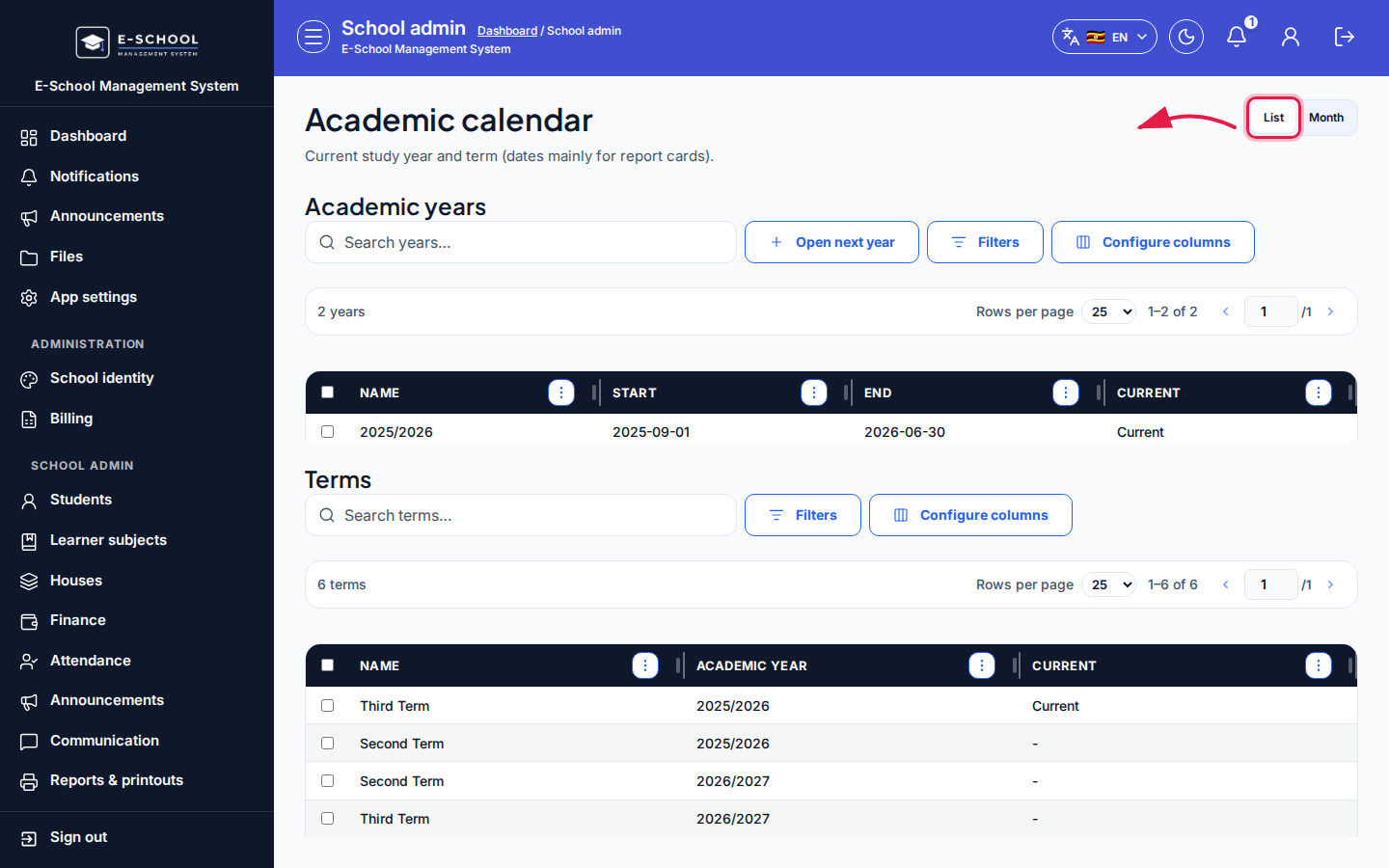 Desktop - focus for step 2
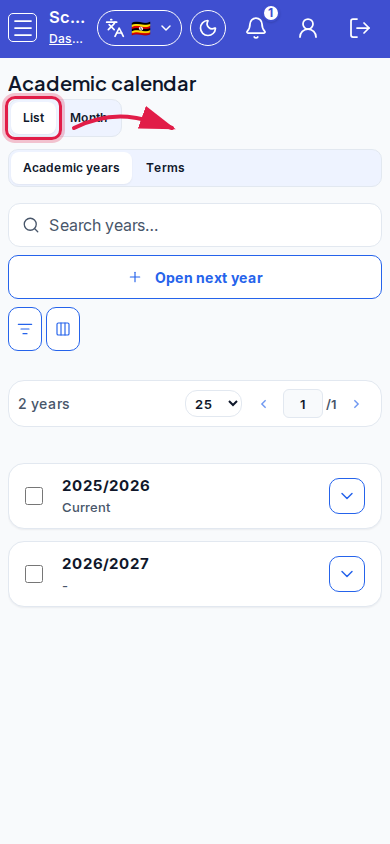 Mobile - focus for step 2
- Click Open next year when rolling forward. Select a year to Edit dates or Set current year.
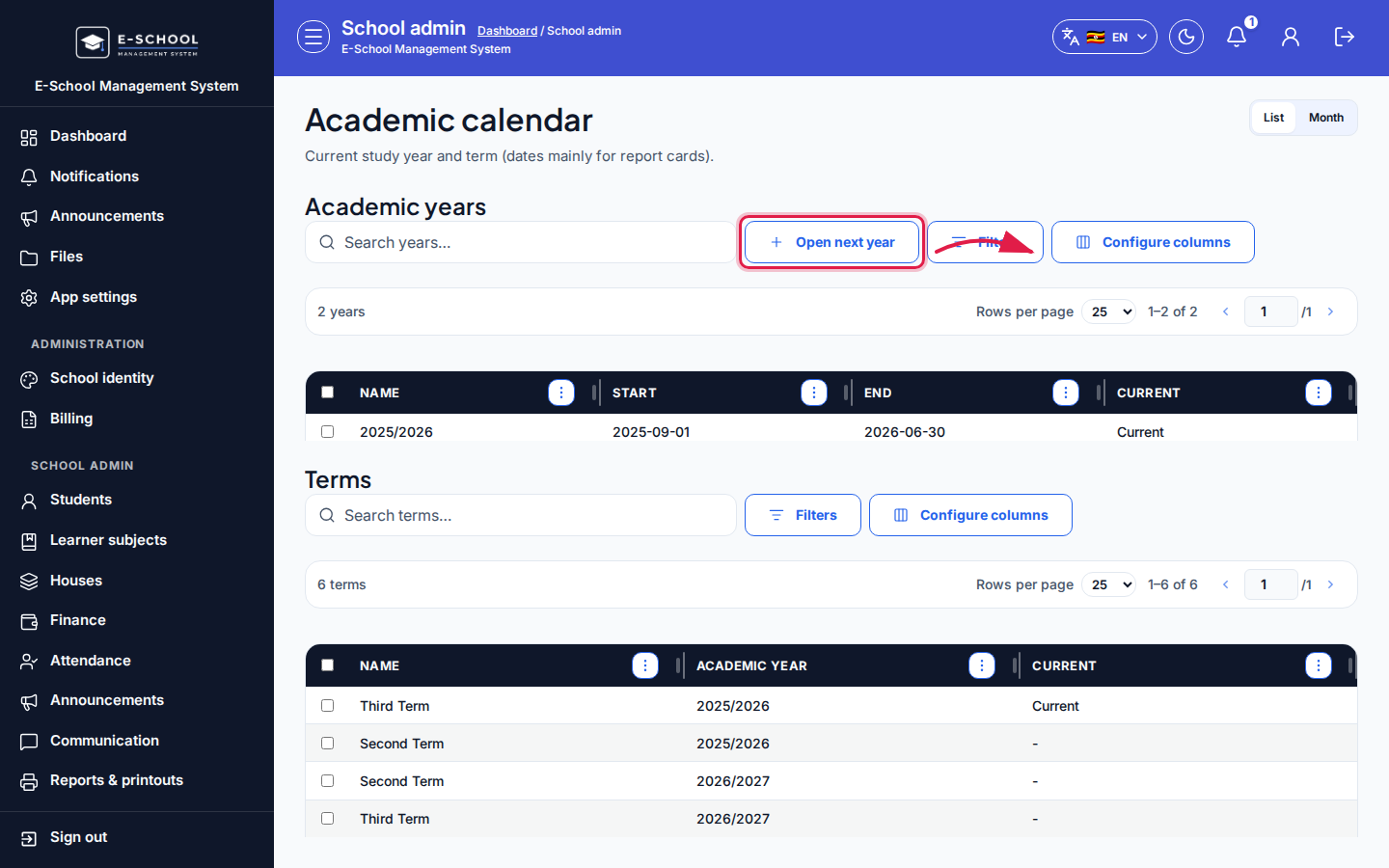 Desktop - focus for step 3
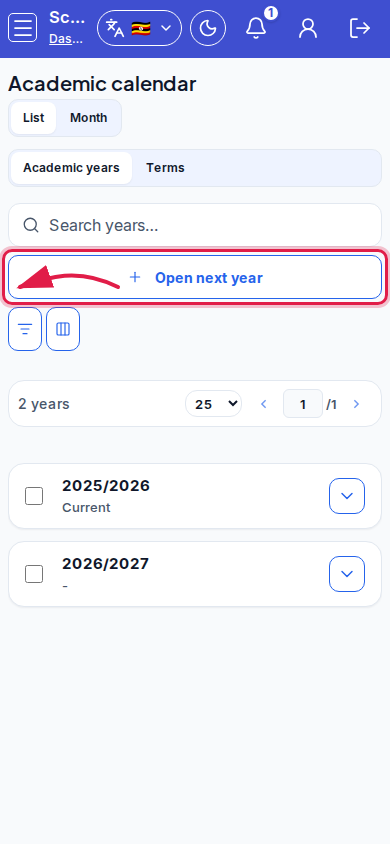 Mobile - focus for step 3
- Select a term to Edit: keep the name, tick Assessable exam types (AOI, Assessment, Beginning of term, Mid-term, End of term), optionally expand Term dates (advanced), then Save.
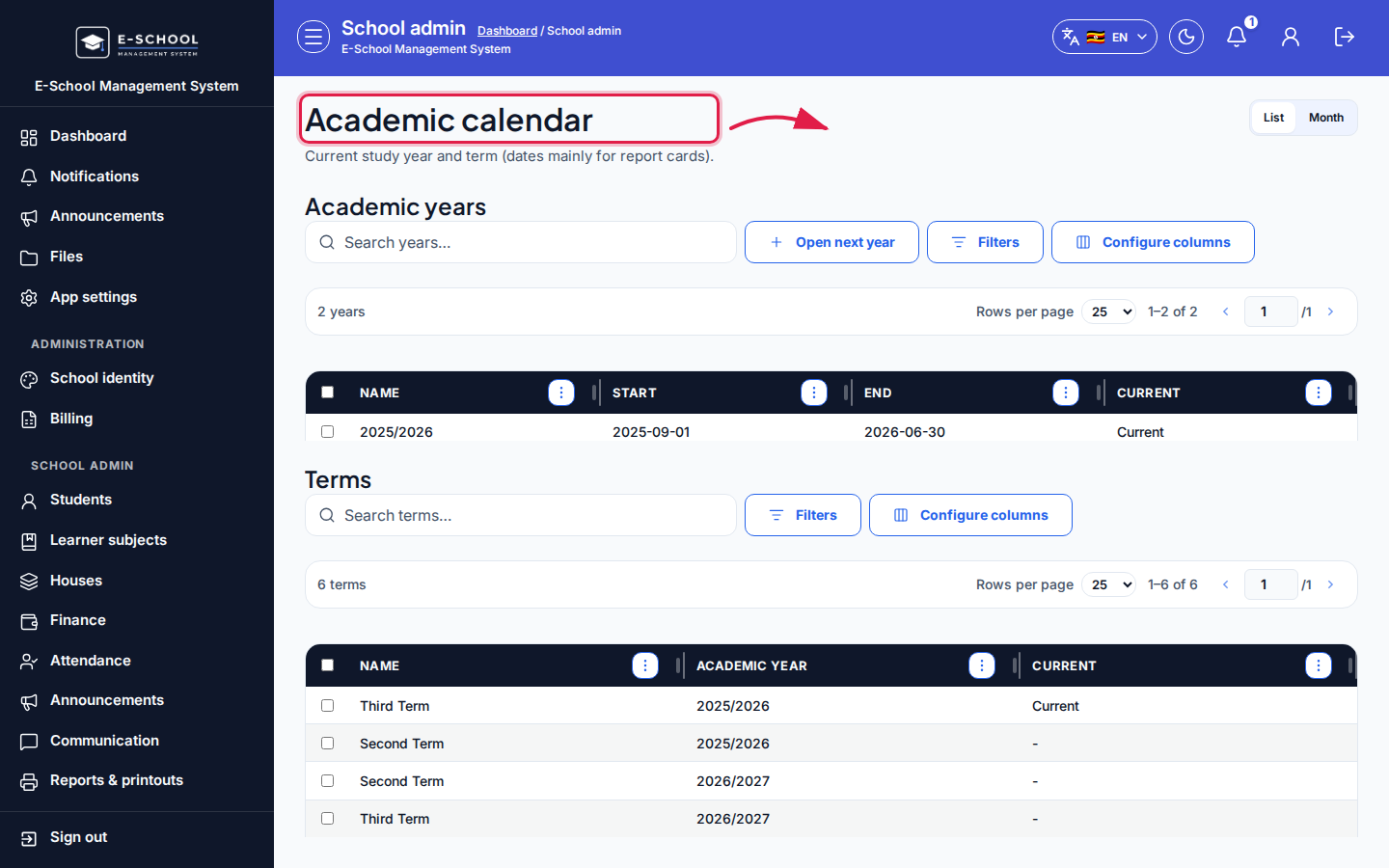 Desktop - focus for step 4
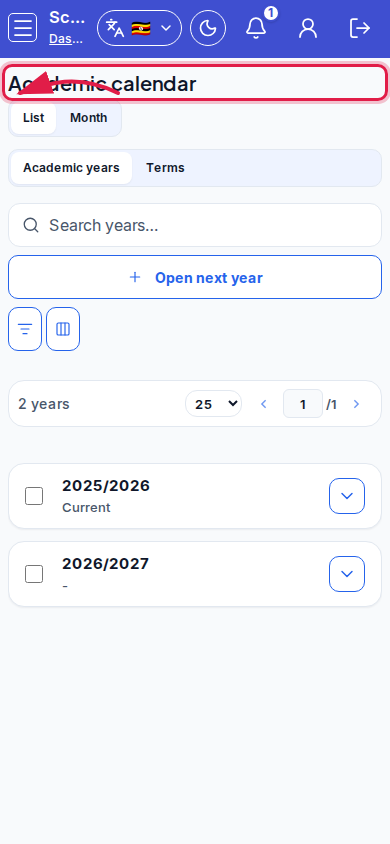 Mobile - focus for step 4
- Use Set current term so marks, fees, and report cards default correctly. Hint link Open classes when years are ready.
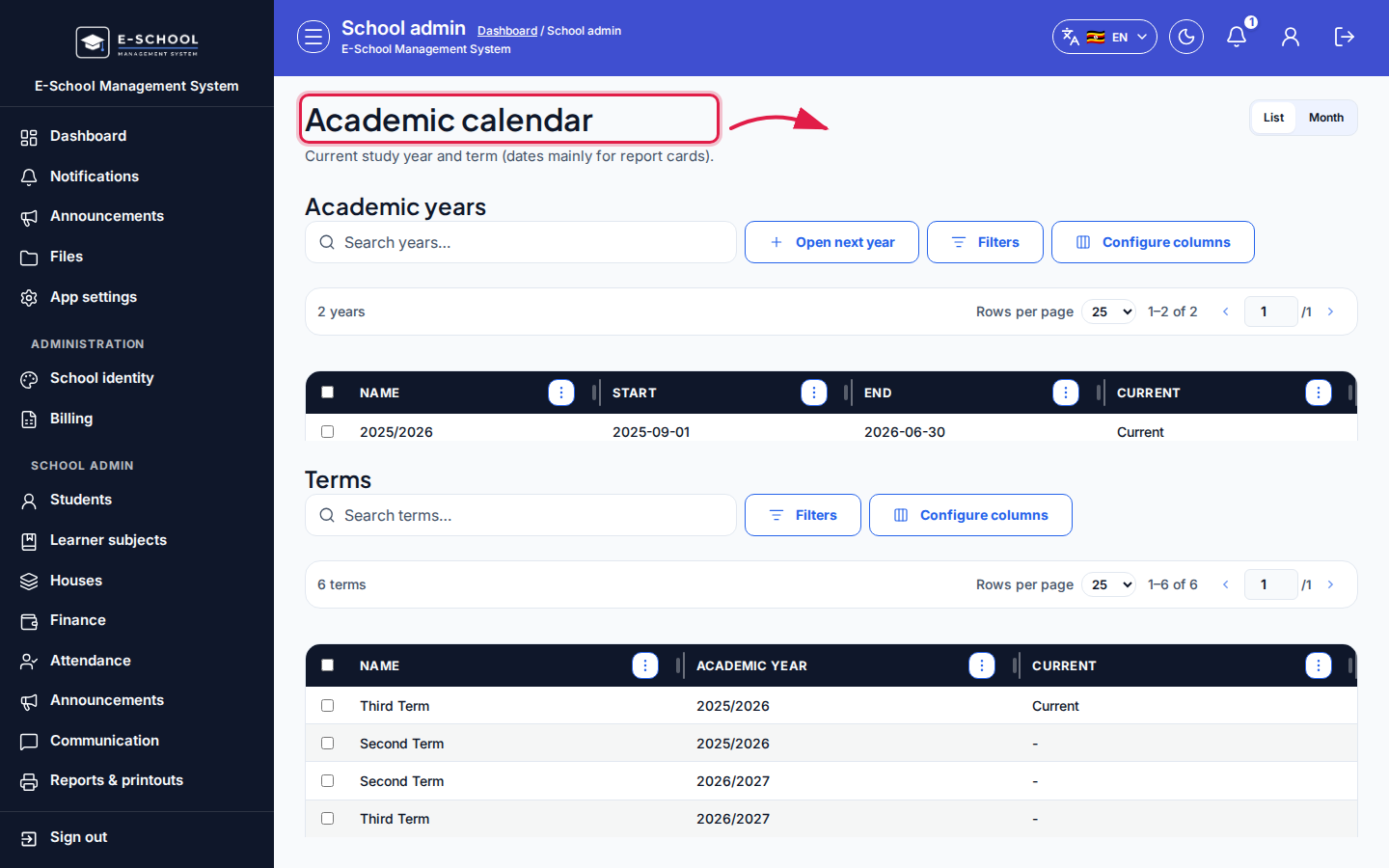 Desktop - focus for step 5
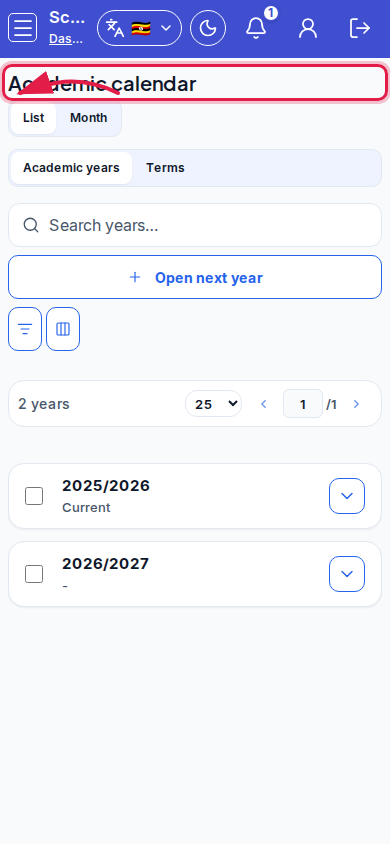 Mobile - focus for step 5
Fields and actions
- View: List / Month
- Years: Open next year, Edit, Set current year
- Terms: Edit, Set current term, Assessable exam types, Term dates (advanced)
- Search years / Search terms
Common mistakes
- No current year or term selected
- Exams or fees dated outside defined terms
- Editing year name offline instead of using Open next year
- Clearing assessable exam types so marks entry has nothing to publish against