Communication
SMS messaging settings/credits and audience-scoped group links (WhatsApp or other).
Who can use this
- ADMIN
Path
/admin/communication
Dependencies
- SMS credits configured when sending SMS.
- Group links need a real URL and clear Shared with audience.
Screenshot
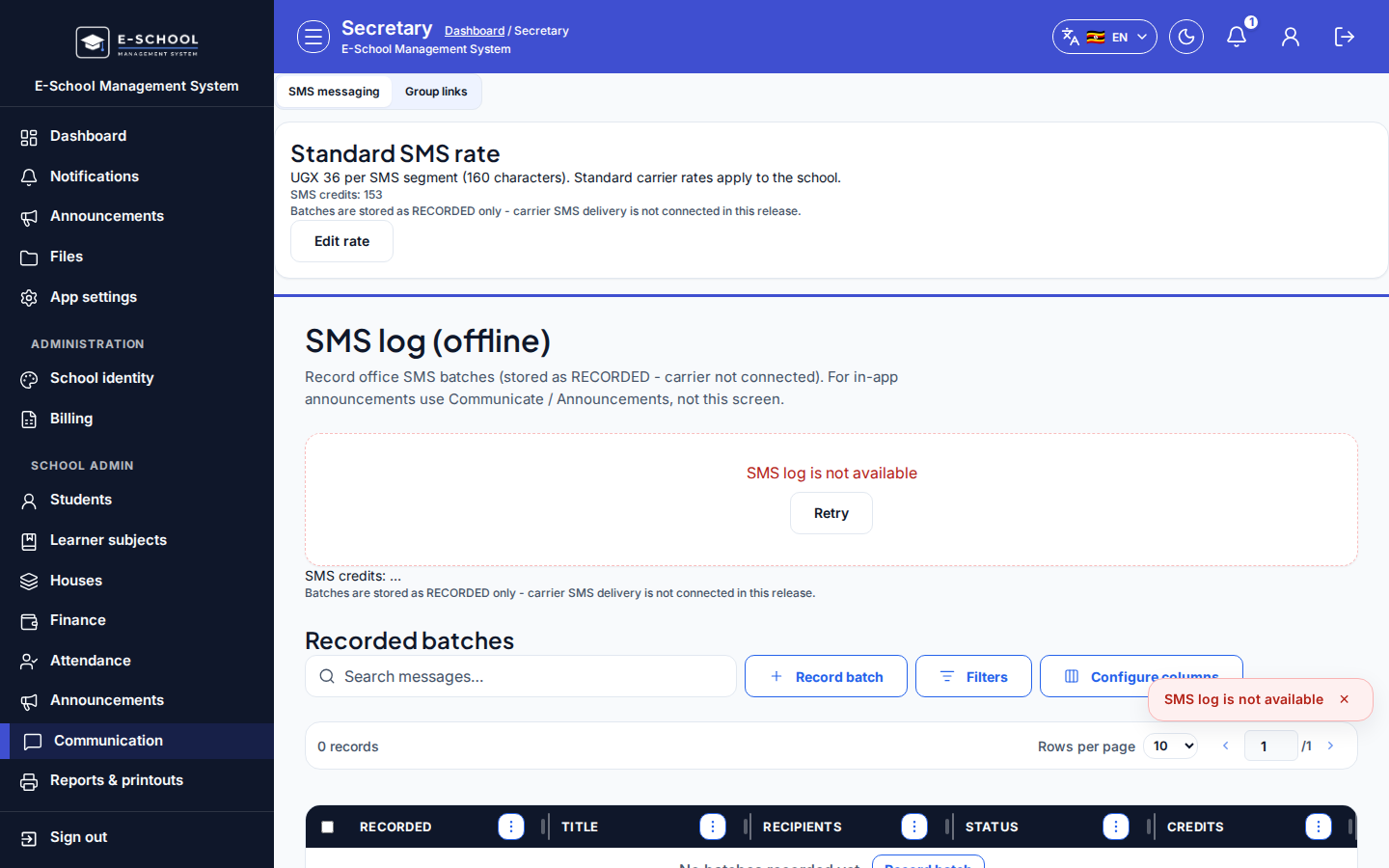
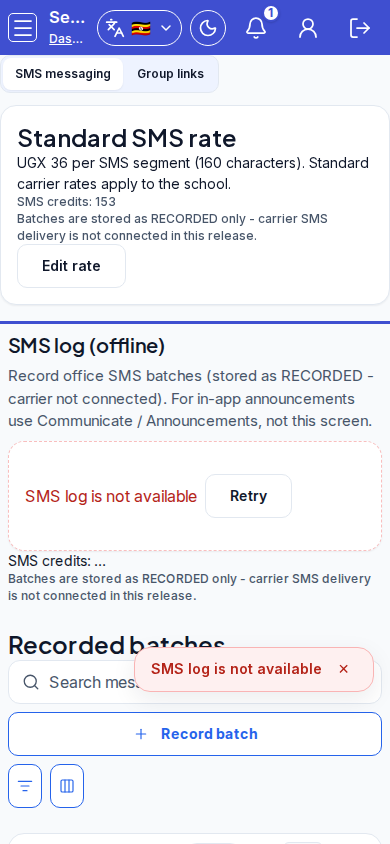
Steps
- Open Communication at
/admin/communicationas ADMIN (Secretary nav also lands here).
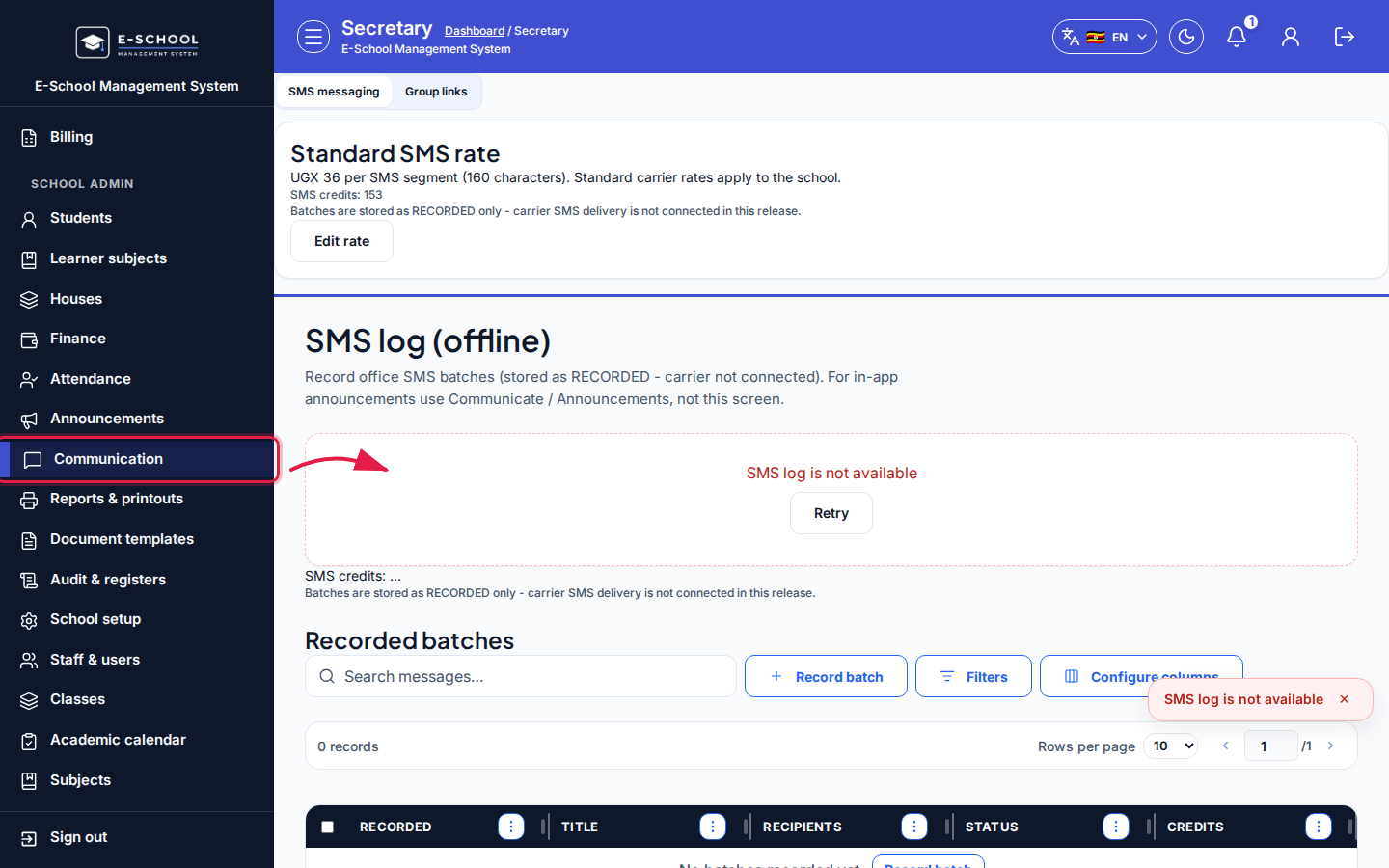 Desktop - focus for step 1
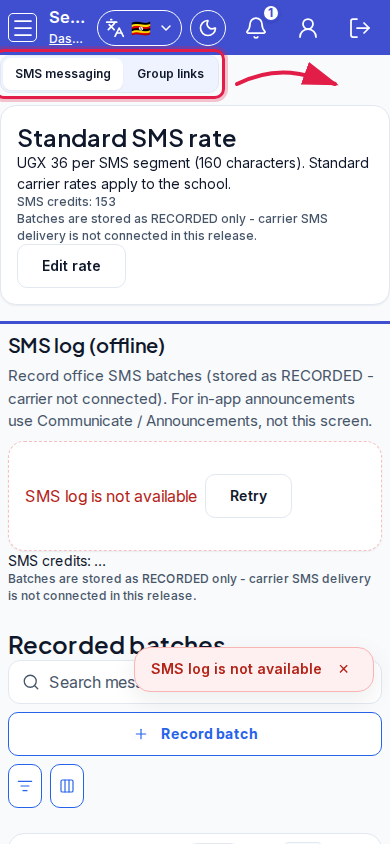 Mobile - focus for step 1
- On SMS messaging, review SMS credits and Standard SMS rate; Edit rate if needed.
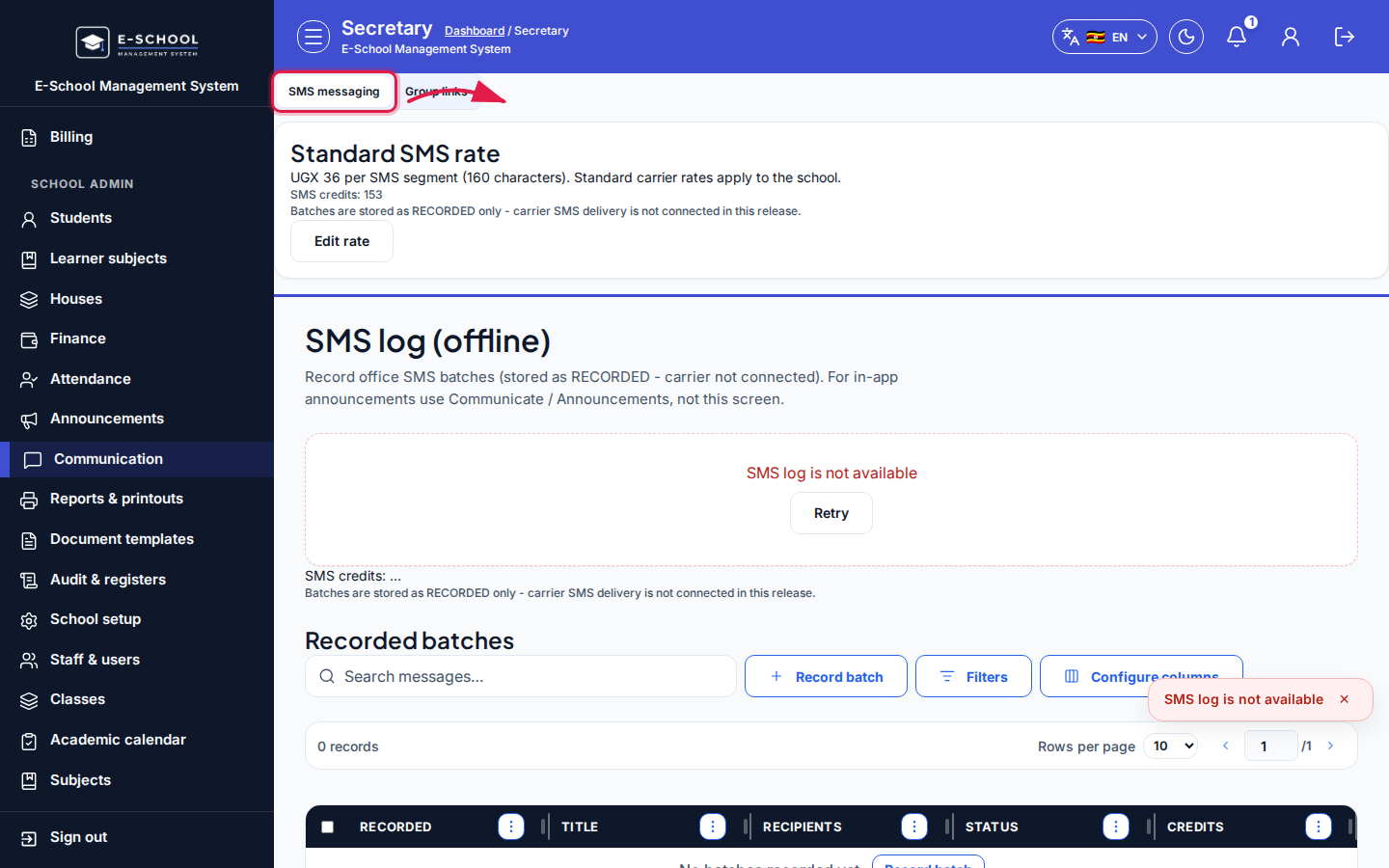 Desktop - focus for step 2
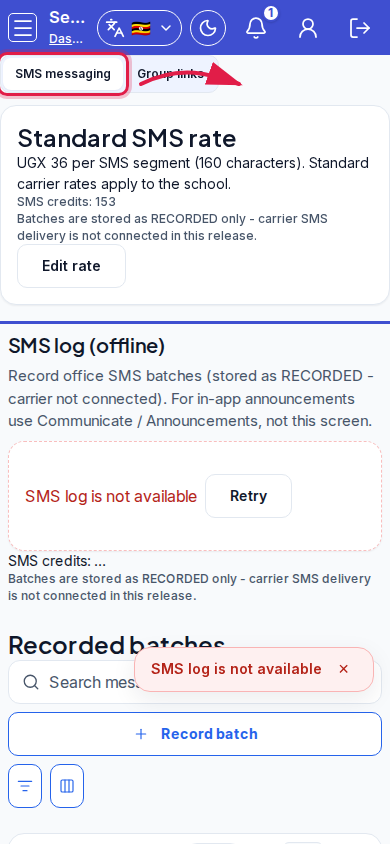 Mobile - focus for step 2
- On Group links, click Add group link. Fill Destination name, Link URL, Shared with, Channel (WhatsApp / Other), Sort order, Visible, optional Internal note, then Save.
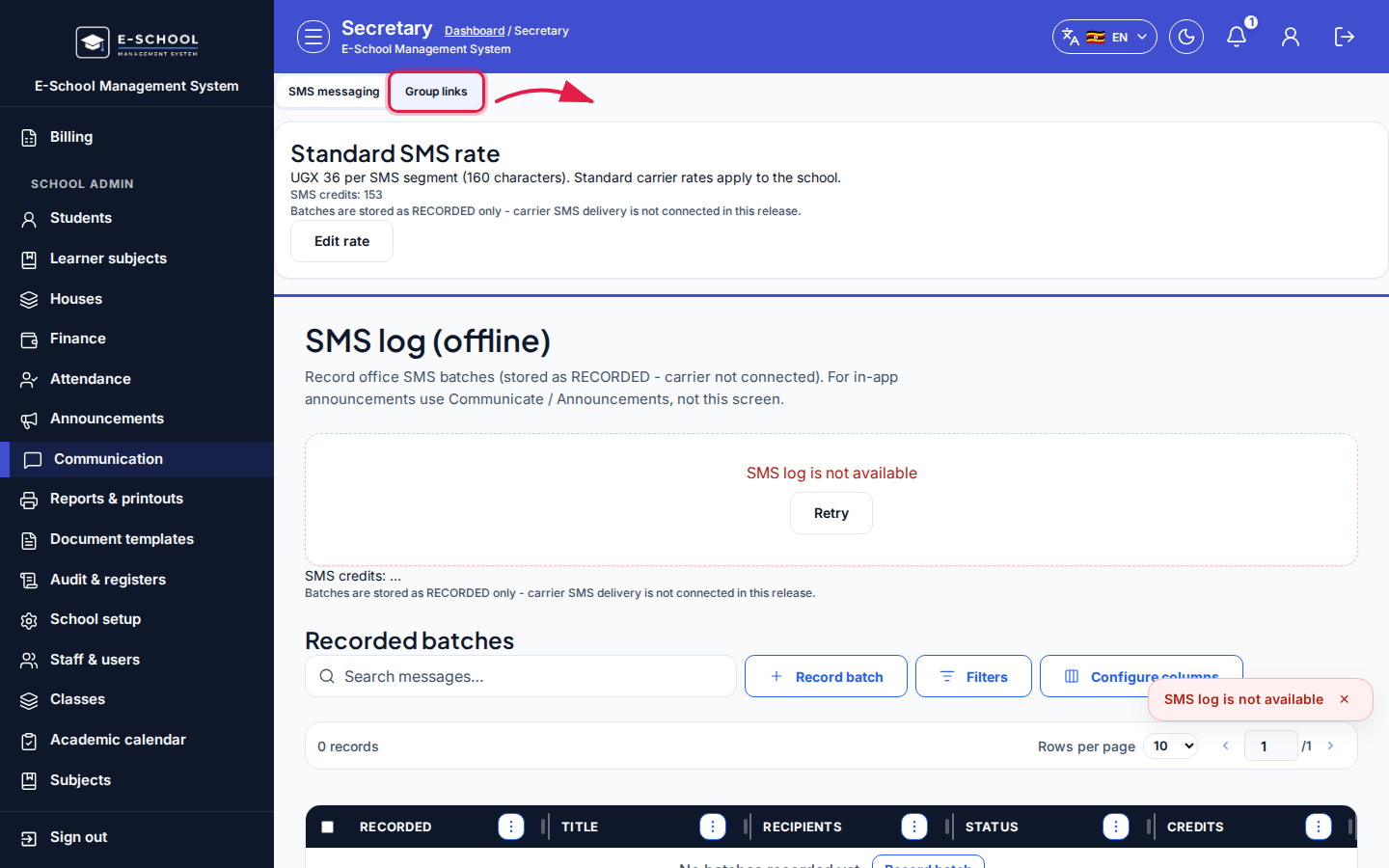 Desktop - focus for step 3
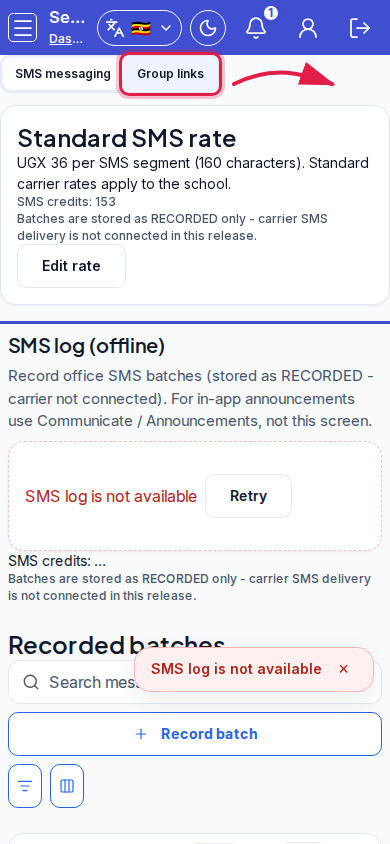 Mobile - focus for step 3
- Select a link to Edit, Open, or Delete.
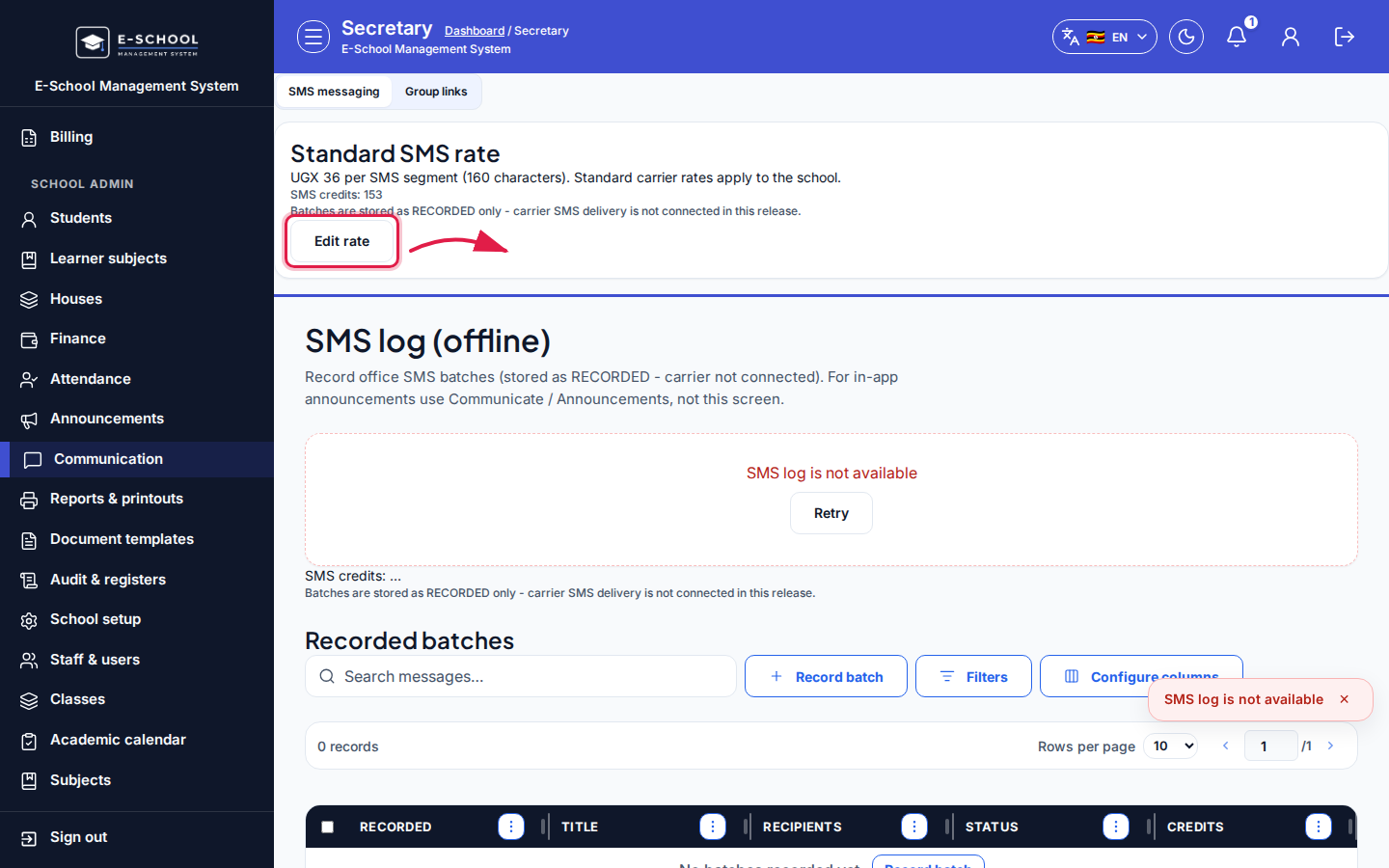 Desktop - focus for step 4
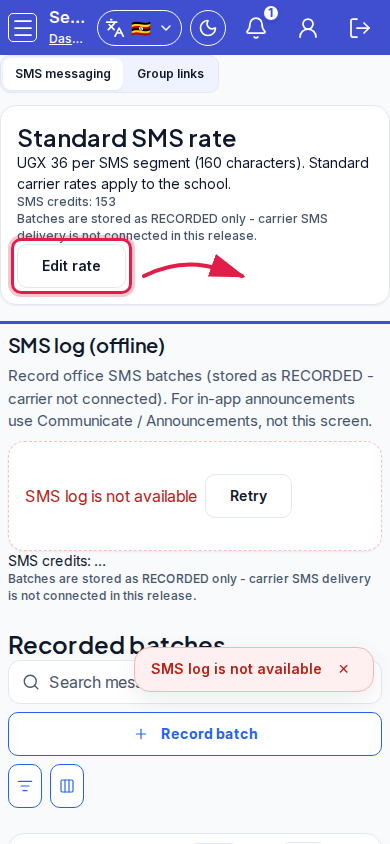 Mobile - focus for step 4
- Keep Visible off until the URL is verified.
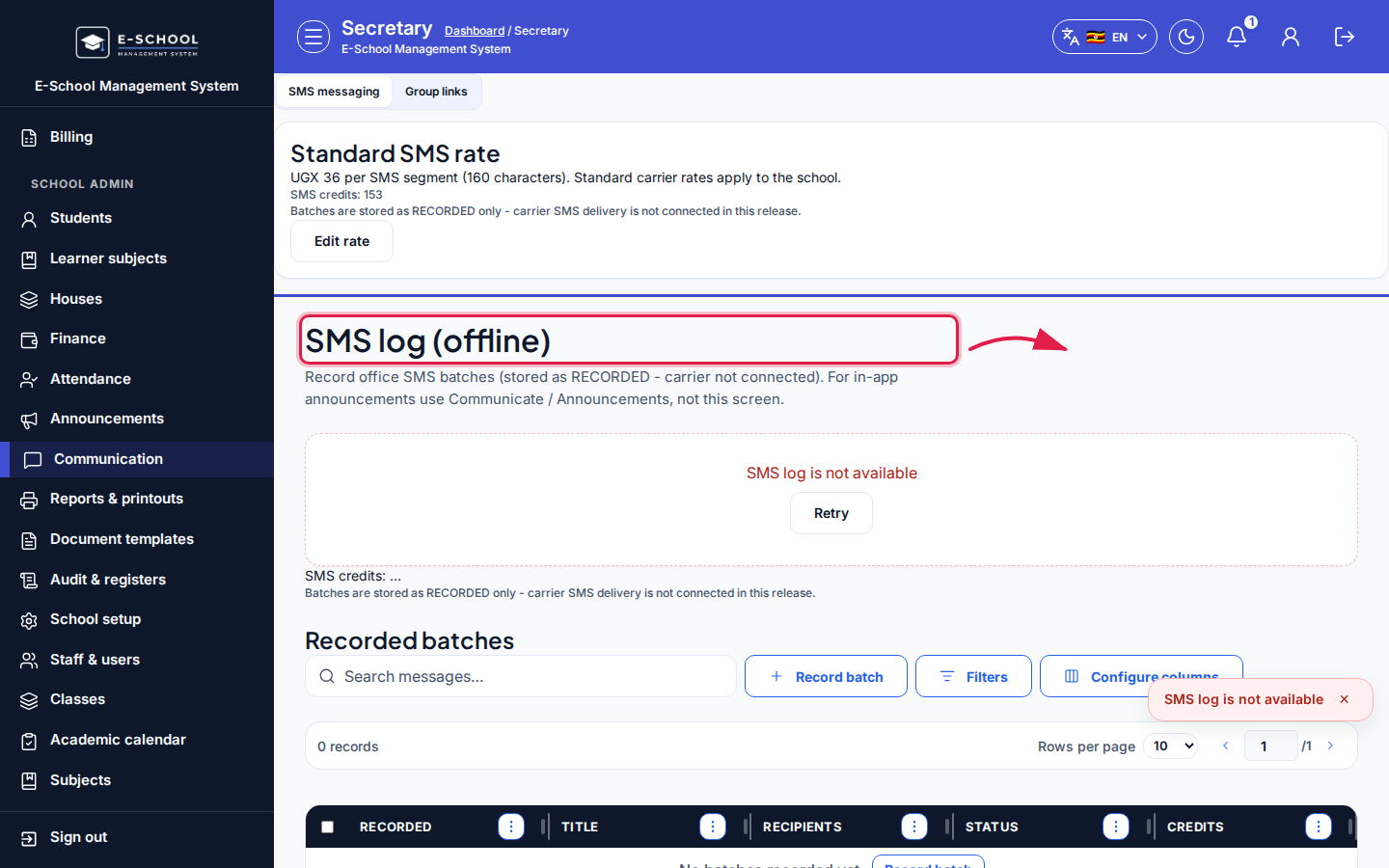 Desktop - focus for step 5
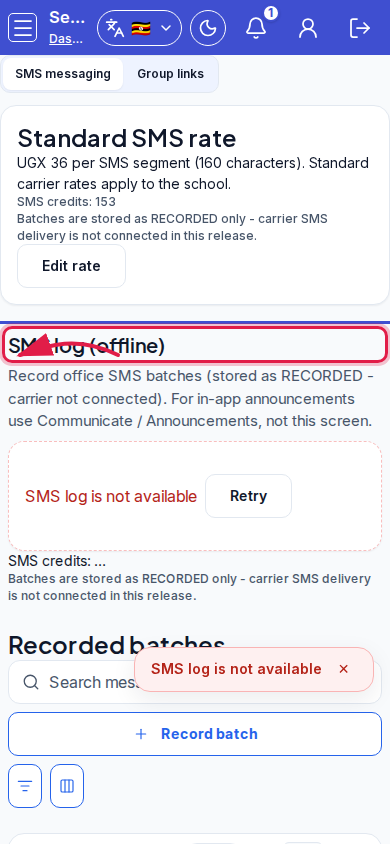 Mobile - focus for step 5
Fields and actions
- Tabs: SMS messaging | Group links
- SMS: Standard SMS rate, Edit rate, SMS credits
- Links: Add group link, Edit, Delete, Open
- Link fields: Destination name, Link URL, Shared with, Channel, Sort order, Visible, Internal note
Common mistakes
- Sharing a link before Visible is intentional
- Editing SMS rate currency without finance agreement
- Deleting a link still pinned in parent WhatsApp groups