Purchase orders
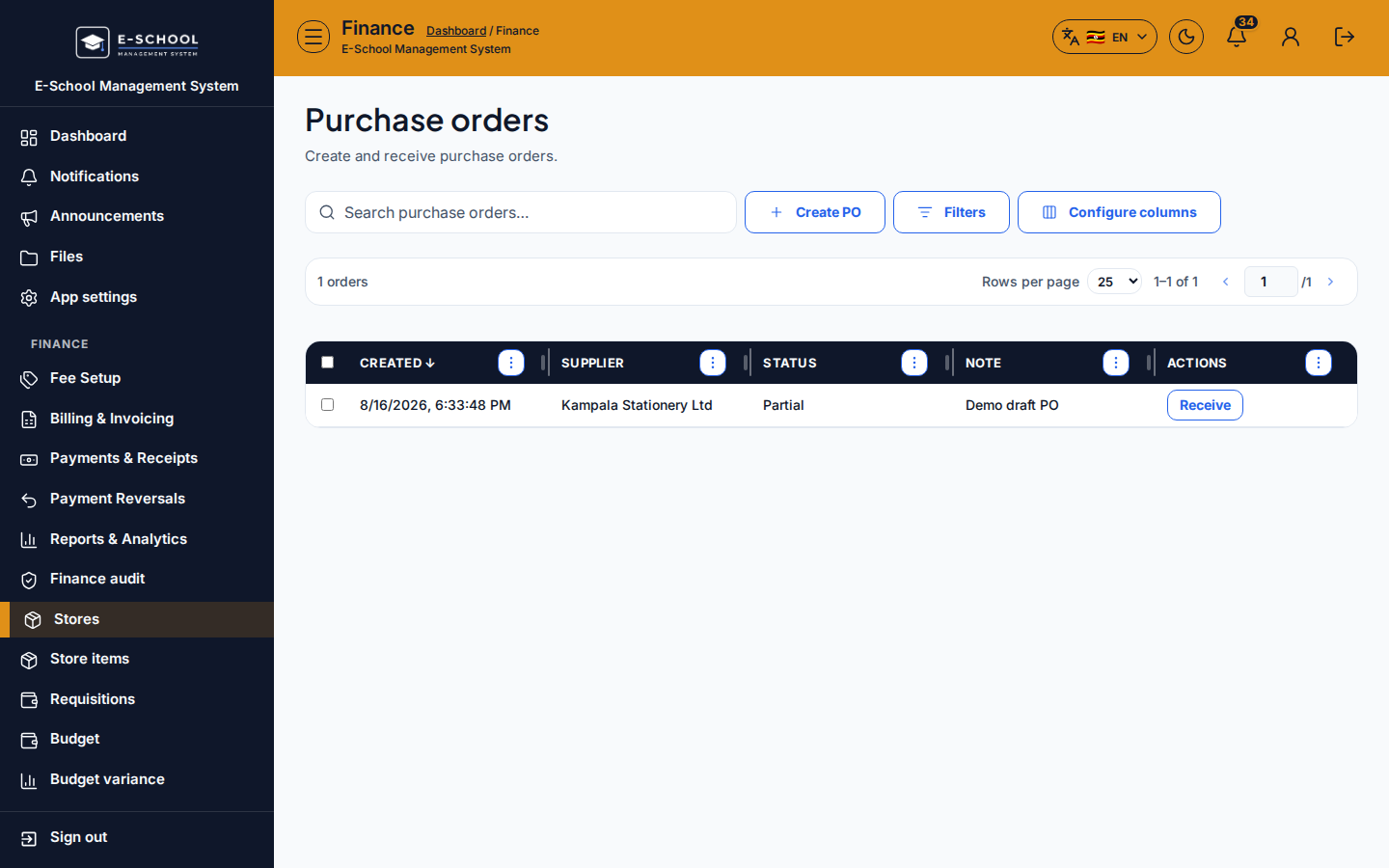
Create supplier POs, send them, then Receive goods into a store location (creates GRN history).
Who can use this
- FINANCE
- ADMIN
Path
/finance/stores/purchase-orders
Dependencies
- Store items, Suppliers, and Store locations.
- Prefer raising a PO only after a requisition shows stock is short.
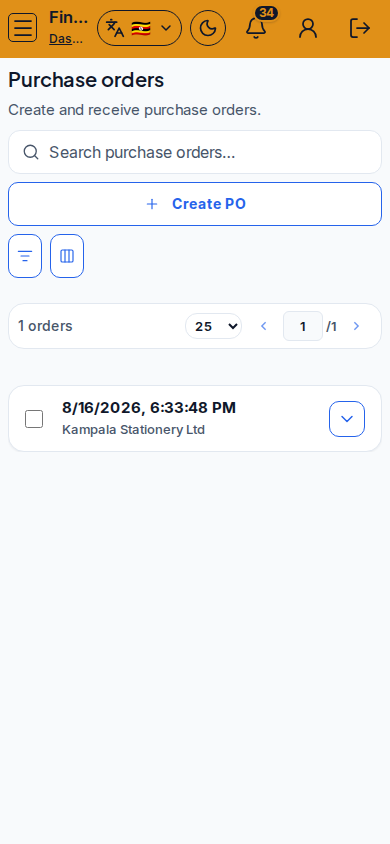
Screenshot
Steps
- Open Purchase orders at
/finance/stores/purchase-ordersas FINANCE. - Click Create PO, pick supplier and lines (item + qty), then save as draft.
- Send the PO when ready (status moves from DRAFT toward SENT).
- When goods arrive, click Receive on the PO. In Receive goods, choose location and qty per line, then Receive.
- Confirm the new row appears under Goods receipts and on-hand stock increased.
- Do not receive the same delivery twice - remaining qty on lines should go to zero when fully receipted.
Fields and actions
- Create PO / Send / Receive
- PO status: DRAFT / SENT / …
- Receive goods dialog: location, qty per line
- Filters / Configure columns / Search
Common mistakes
- Receiving twice for the same delivery
- PO without a supplier on file
- Receiving into the wrong location
- Creating lines for SKUs that do not exist in Store items