From marks to report cards
Configure exams, enter and publish marks, generate report cards, print or release them, then let students and parents view results.
Steps
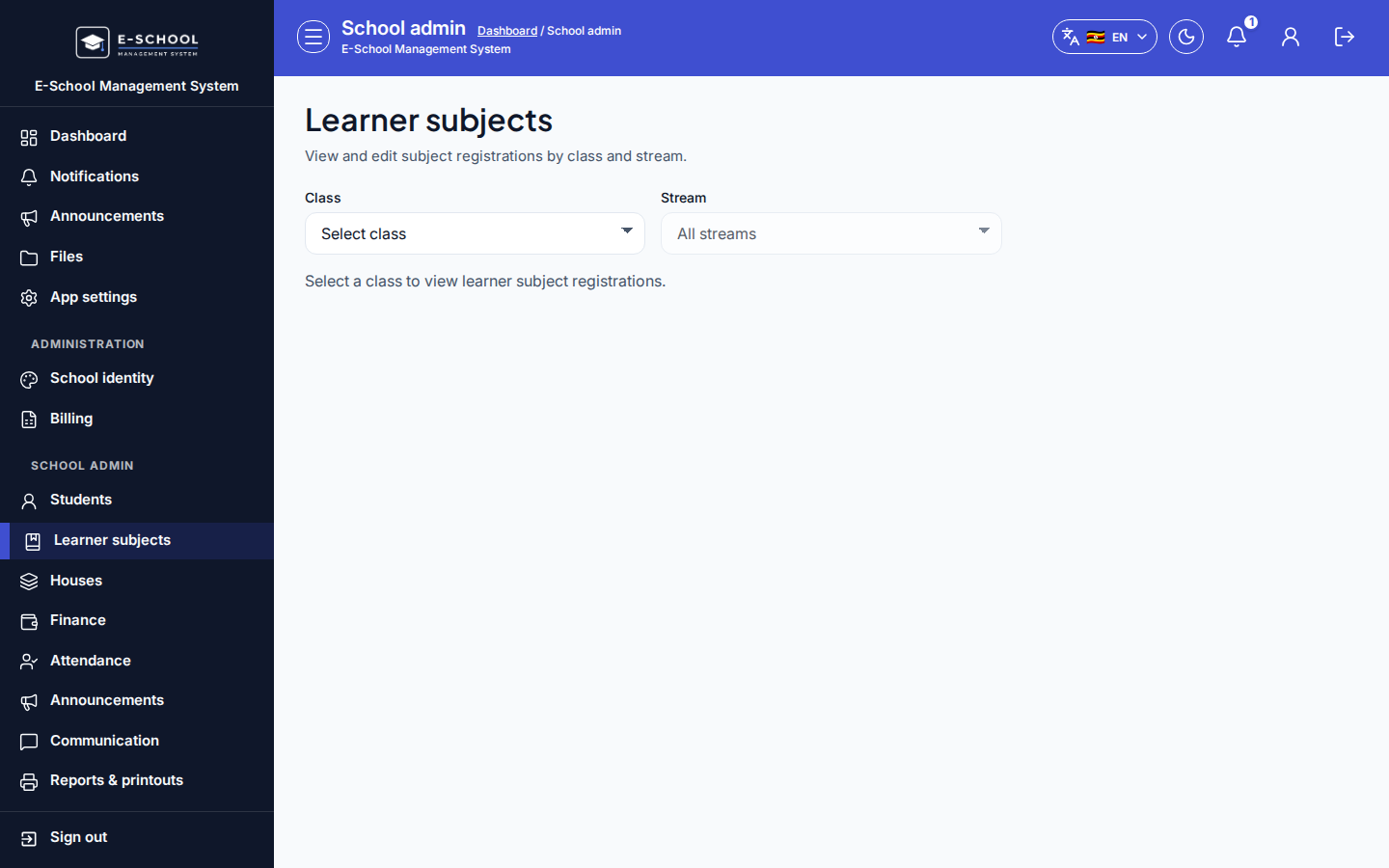
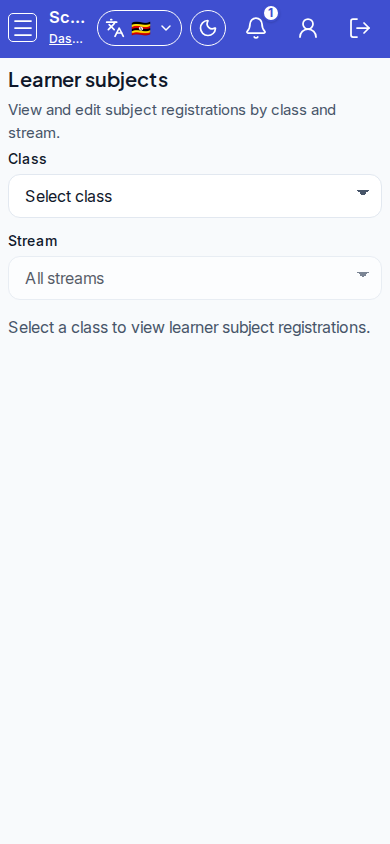
- Register learner subjects - Learner subjects
- Select class/stream and tick subjects per learner before any marks run.
- Tip: empty subject registrations are the #1 cause of empty report cards.
- Configure exams - Exams & marks
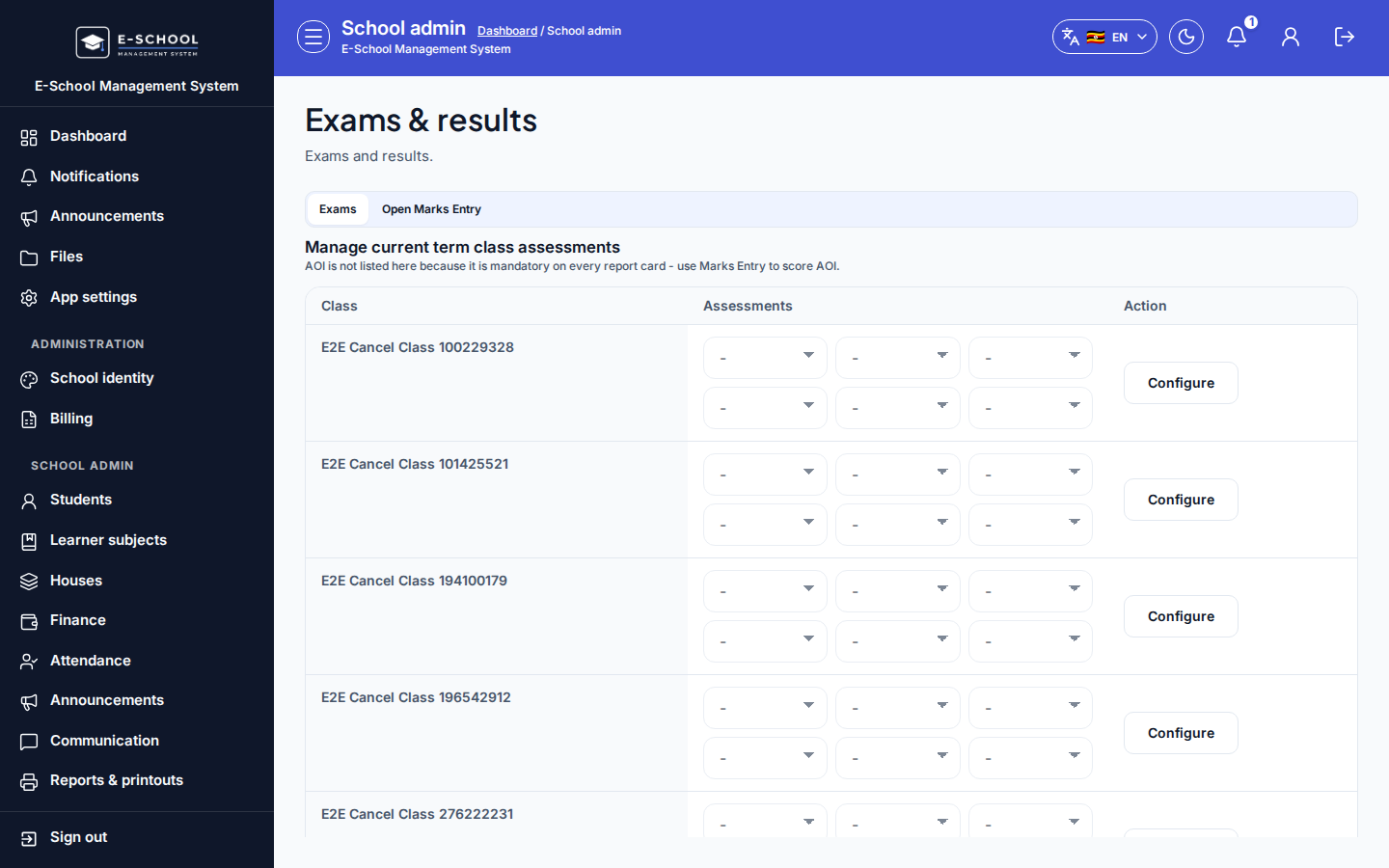
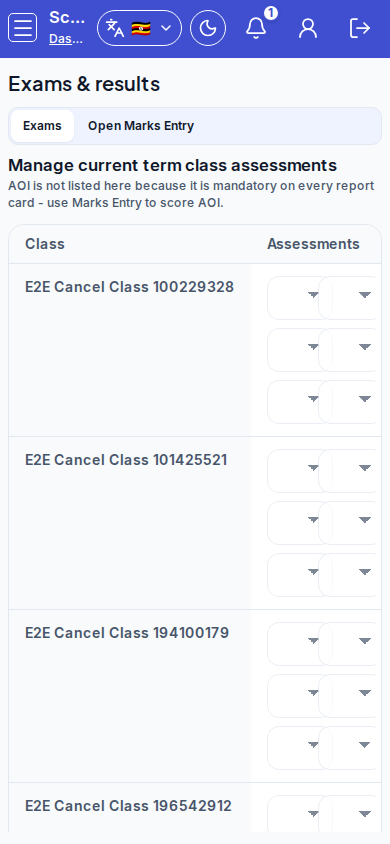
- On Exams, create or Edit the exam (class, type, max marks), save, then leave unpublished until sheets are ready.
- Tip: use Create AOI exam when that workflow applies. Wrong max marks break grade totals later.
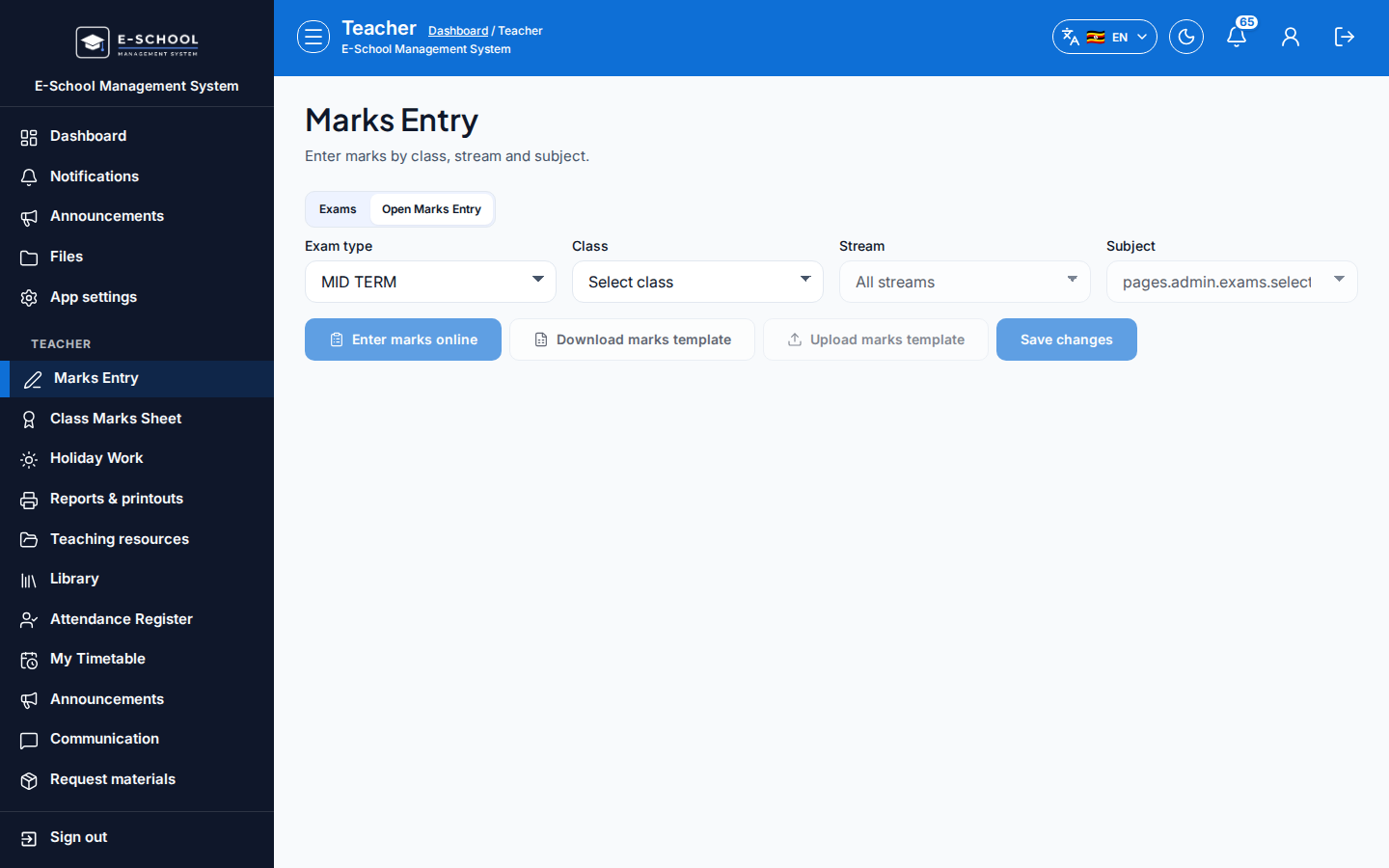
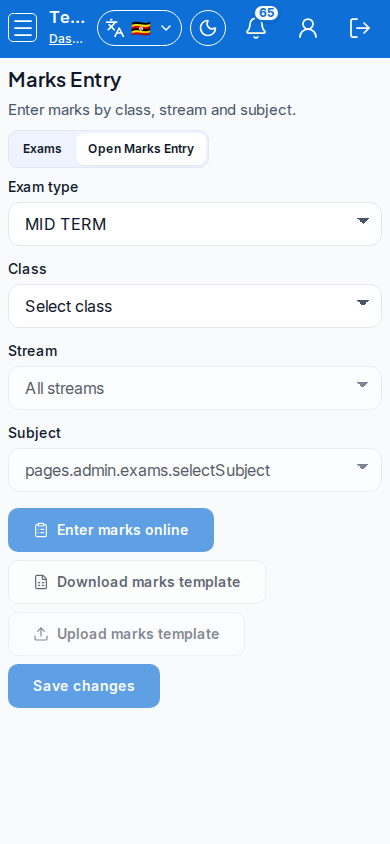
- Enter marks - Marks & exams (or Admin Marks Entry)
- Filter class, stream, subject, and exam; use Enter marks online or template download/upload.
- Click Save changes.
- Tip: AOI is out of 20; report card T1 scales it. Unpublished marks never appear on cards.
-
Publish marks (Admin on Exams & marks)
- Select the exam → Publish only after all teachers finished.
- Tip: class performance and merit views are misleading until publish completes.
-
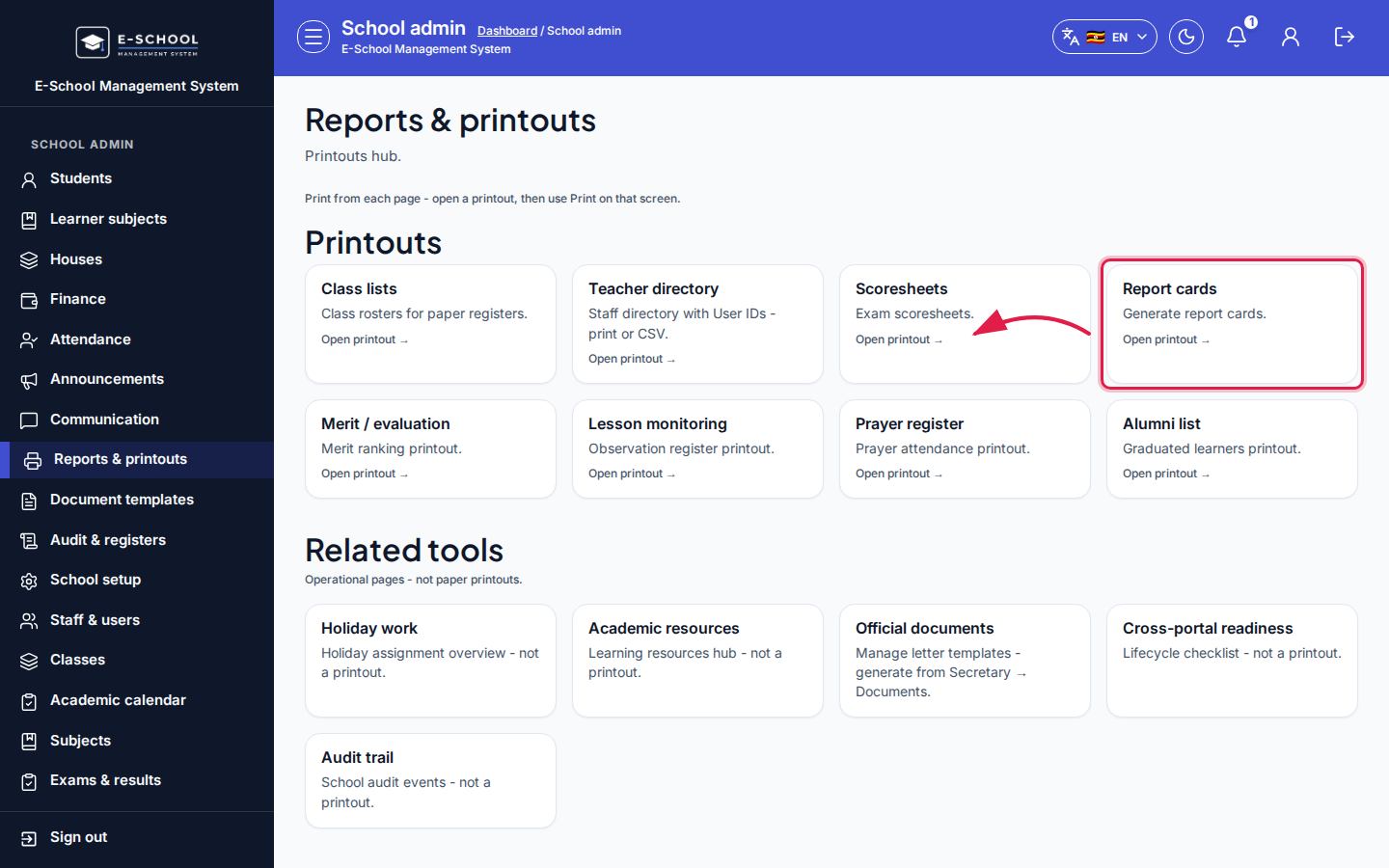
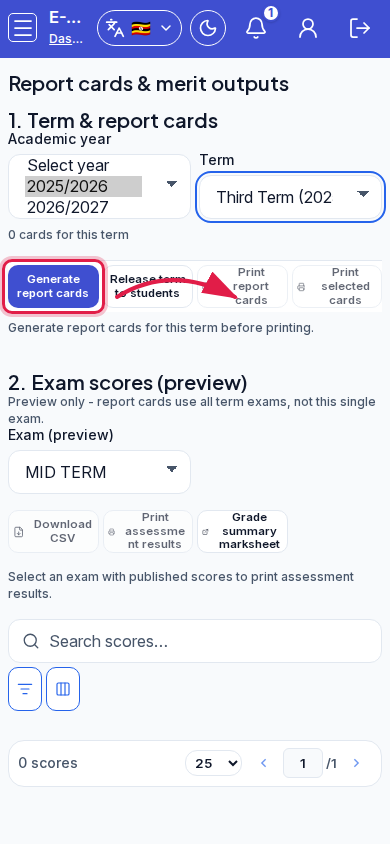
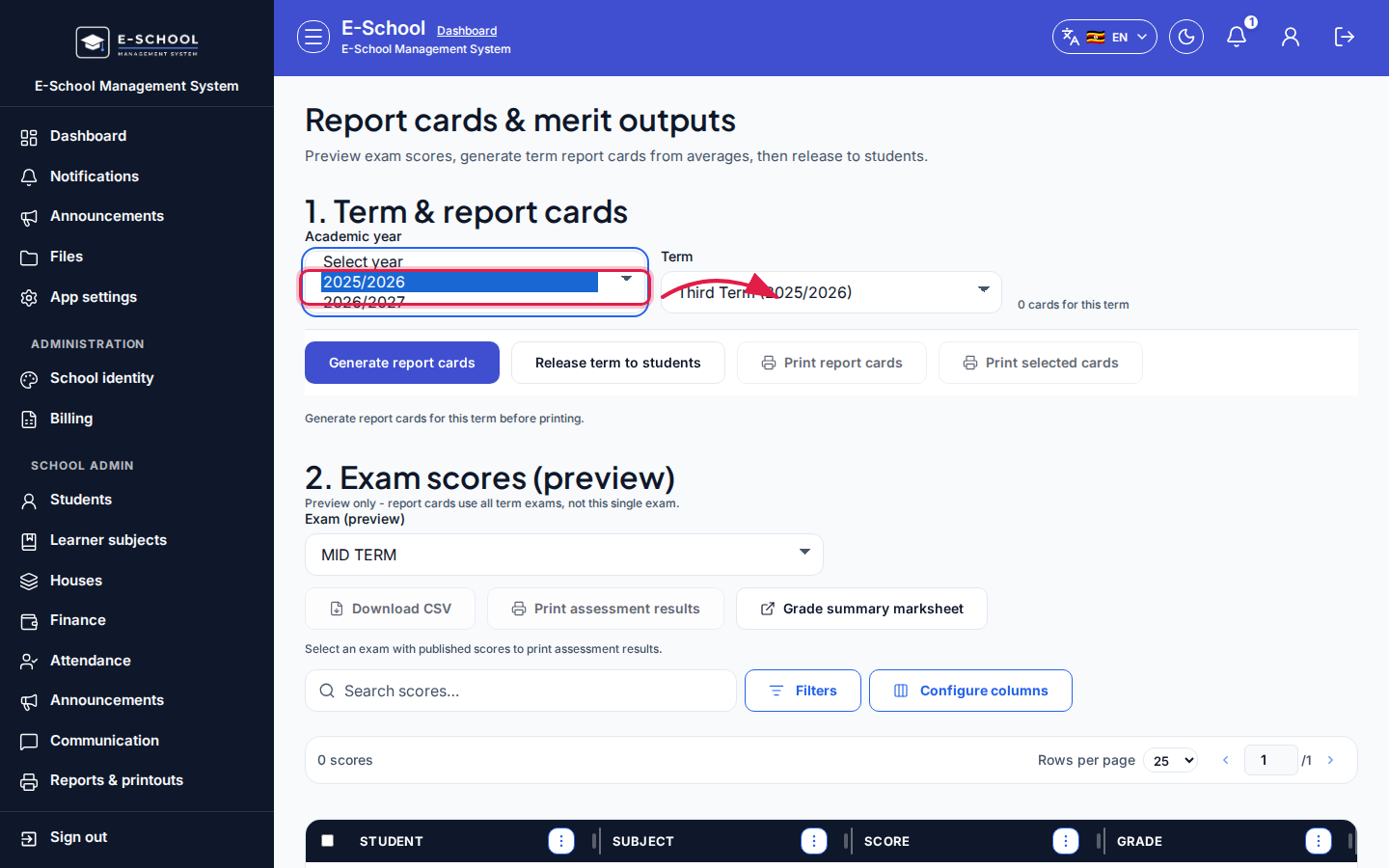
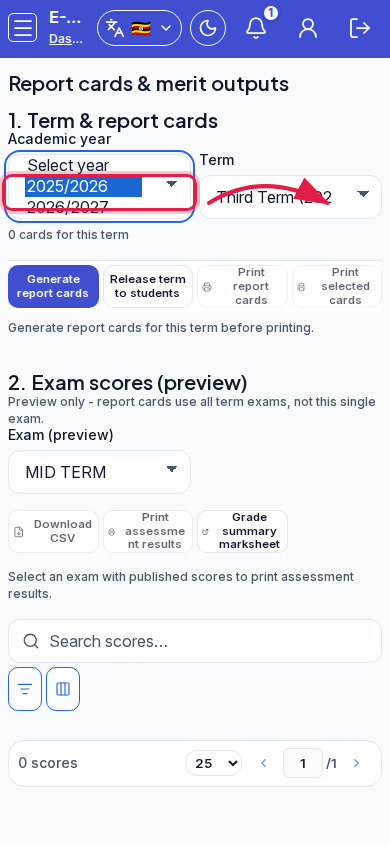
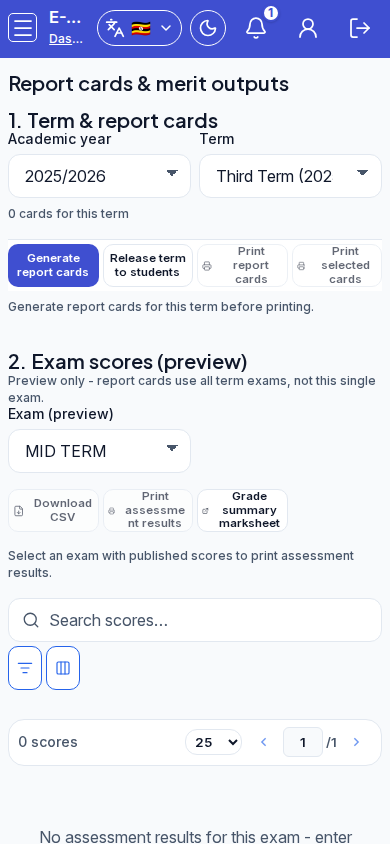
Generate report cards - Admin Report cards (Interaction Fidelity path) or teacher Report cards
- From Reports & printouts open the Report cards card, or go to
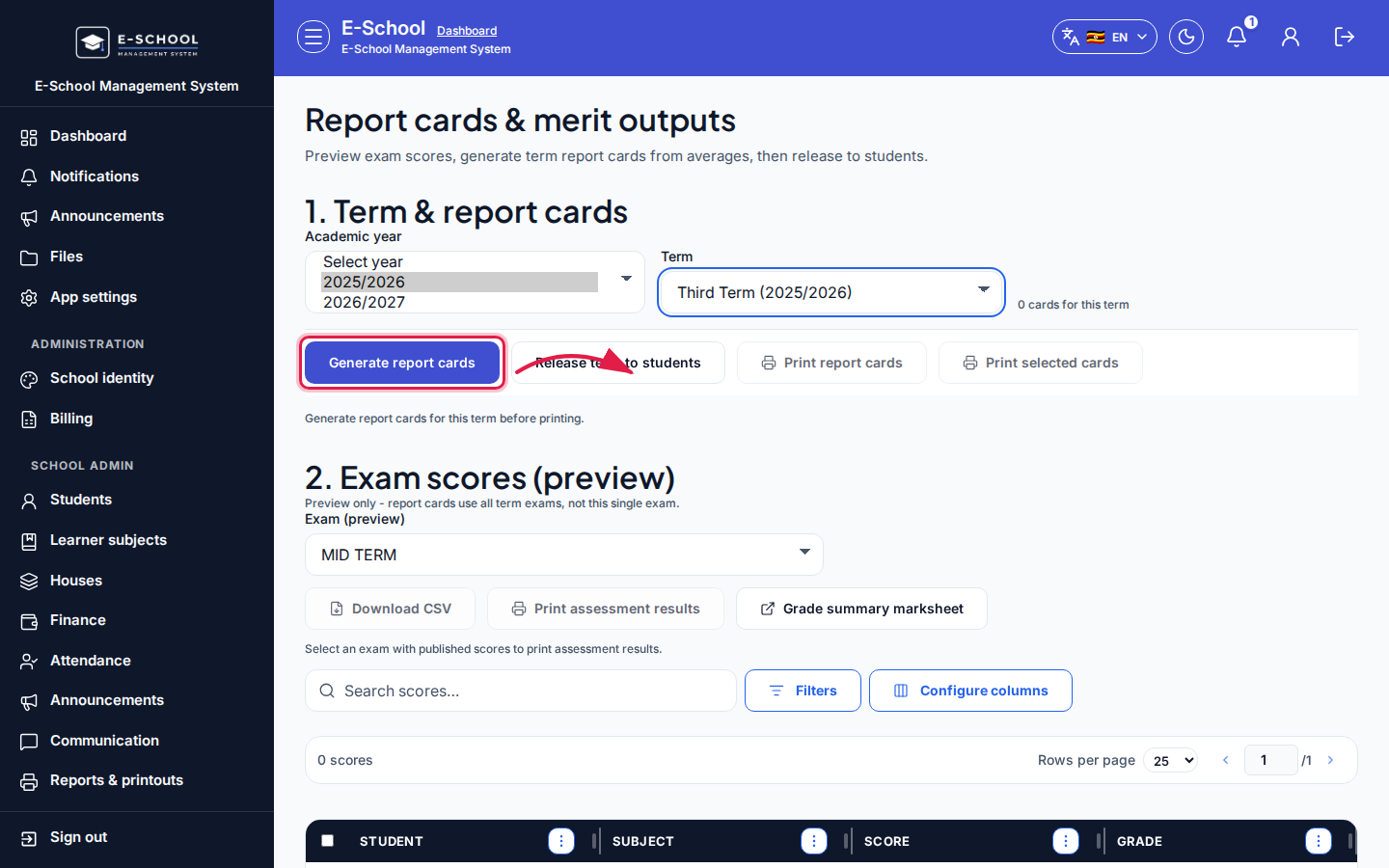
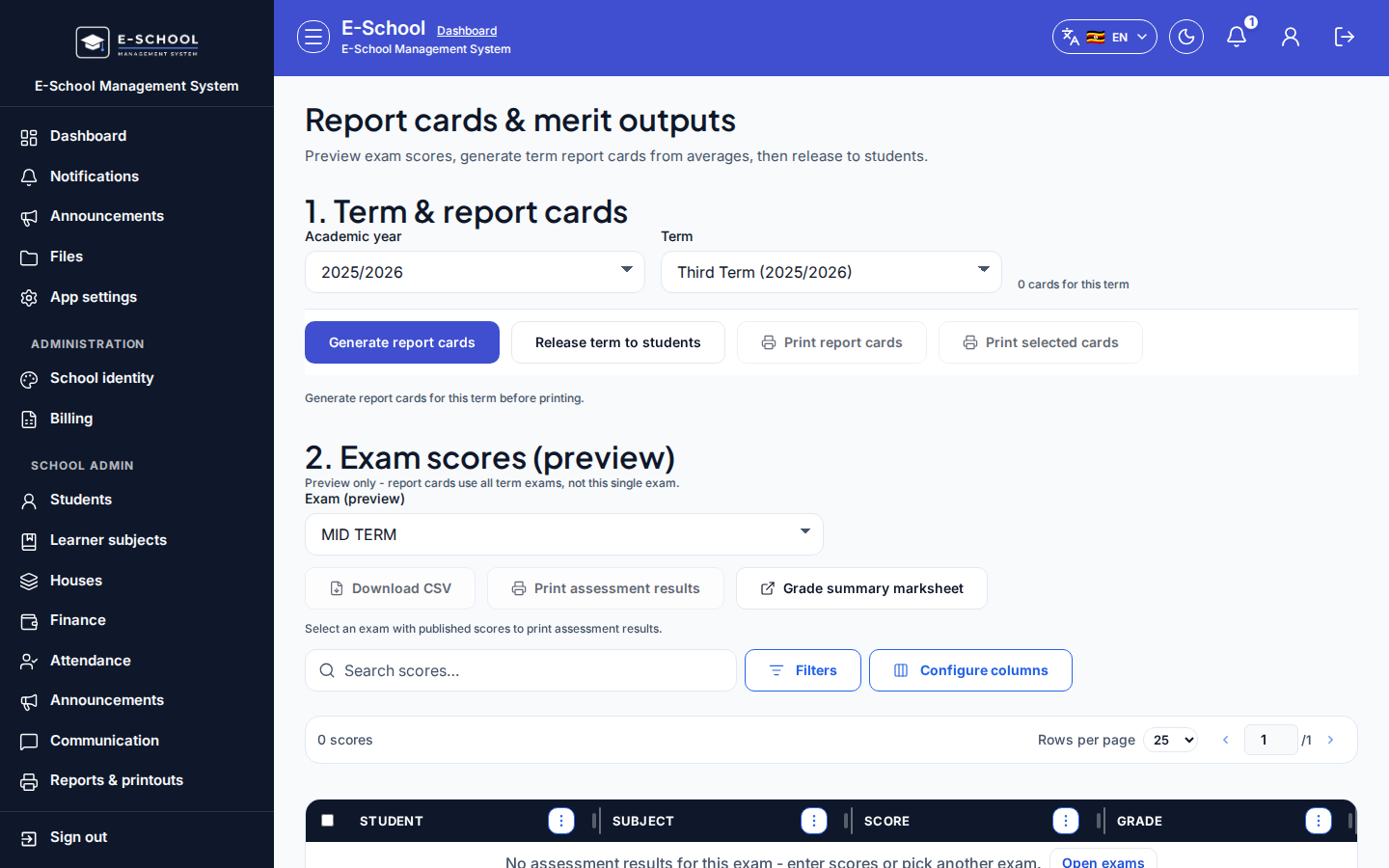
/admin/report-cards. - Open Academic year, pick the year (example seed 2025/2026), open Term, then Generate report cards and finish the wizard.
- Tip: the exam dropdown is preview-only; cards average the term. Missing photos use gender placeholders.
- From Reports & printouts open the Report cards card, or go to
- Print / release - same Report cards screen (Print selected)
- Print selected cards or Print report cards - choose whether to sign every page with your profile e-signature - then Release term to students (teachers: for their class).
- Tip: printing before release confuses parents who expect the portal to match paper.
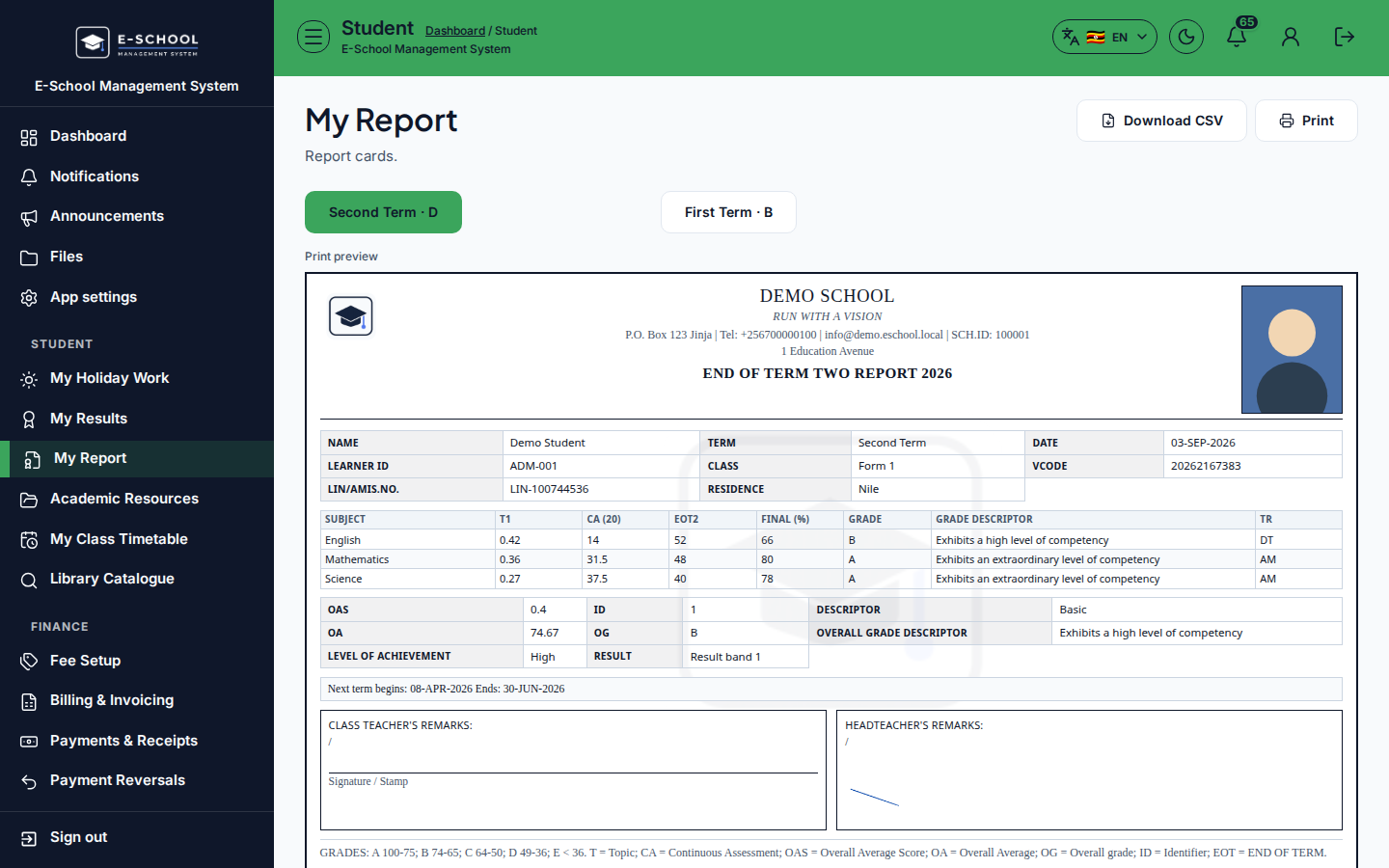
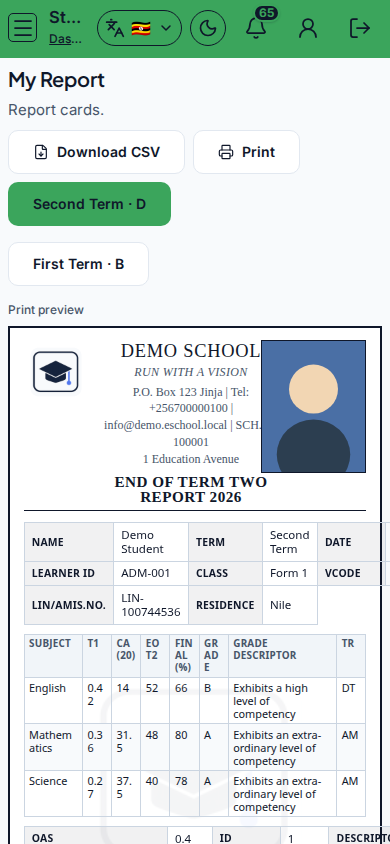
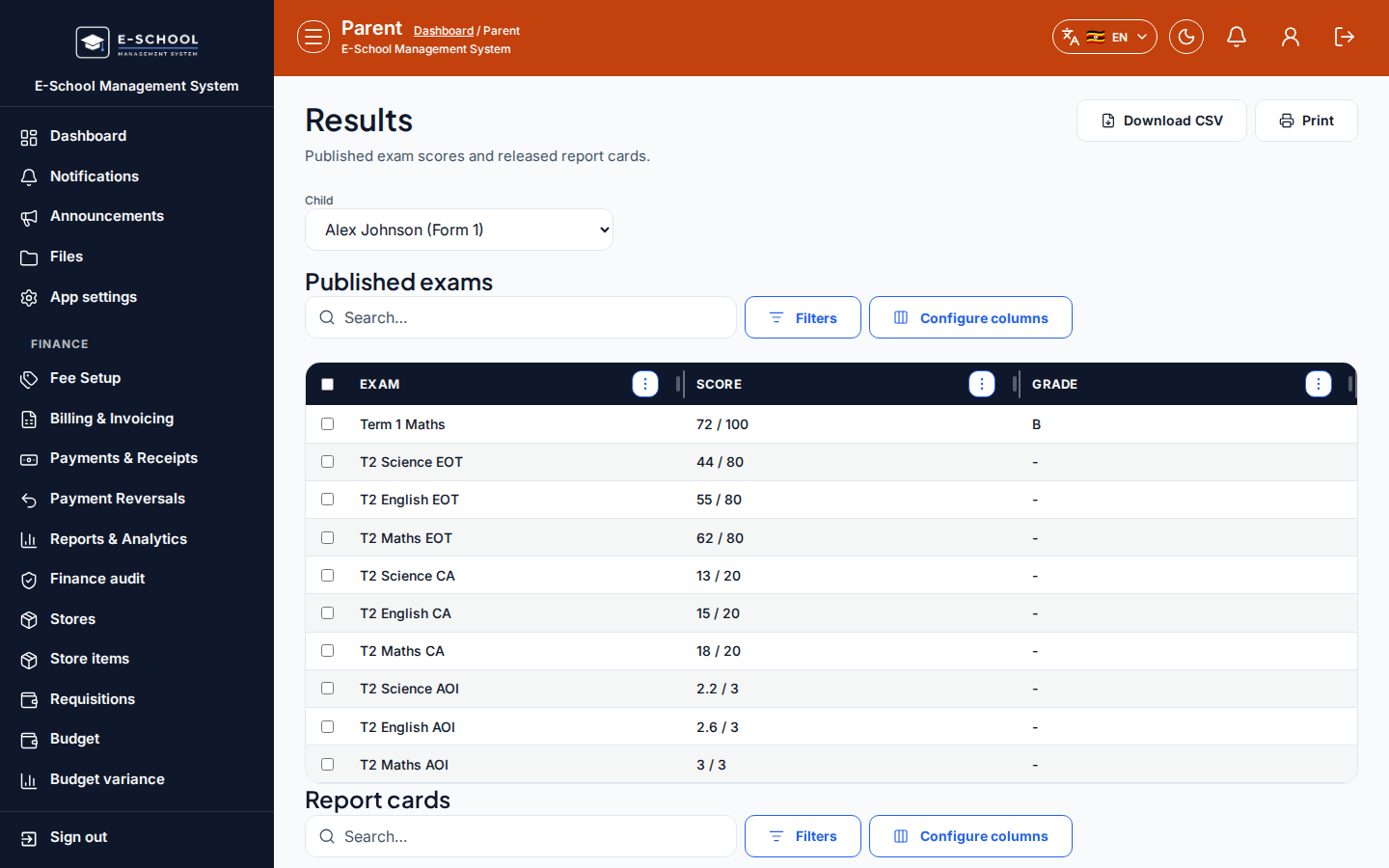
- Student and parent view
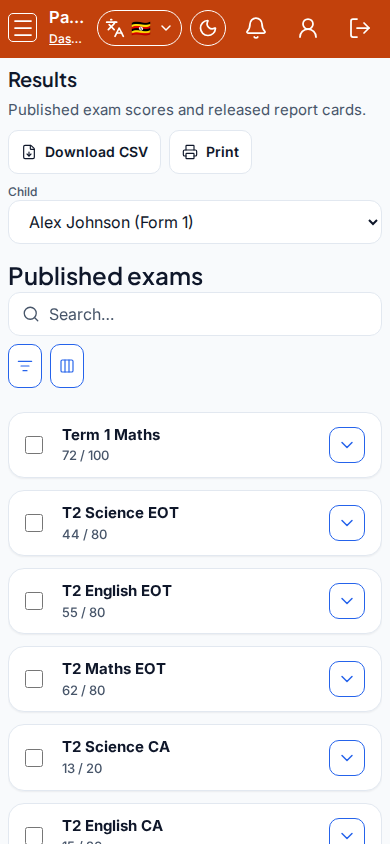
- Student opens My Report; parent opens Results.
- Tip: if the portal is blank, re-check publish, release, and year/term - not the print dialog.
Role handoff
Teachers enter marks and may generate, print, and release report cards for their assigned classes. Admin can still run school-wide generate/print/release. Student/Parent only view published, released results.
Common mistakes
- Empty cards when learner subjects were never registered
- Expecting unpublished marks on the card
- Missing photo/gender placeholder surprises at print time
- Generating before all teachers finished
- Printing before term release
- Treating the exam scores preview as the full term card