Notifications
In-app notification inbox for the signed-in user across roles.
Who can use this
- ADMIN
- TEACHER
- STUDENT
- FINANCE
- SECRETARY
- LIBRARIAN
- NURSE
- PARENT
Path
/notifications
Dependencies
- Events that emit notifications (fees, admissions, announcements).
- Optional browser push via App settings.
Screenshot
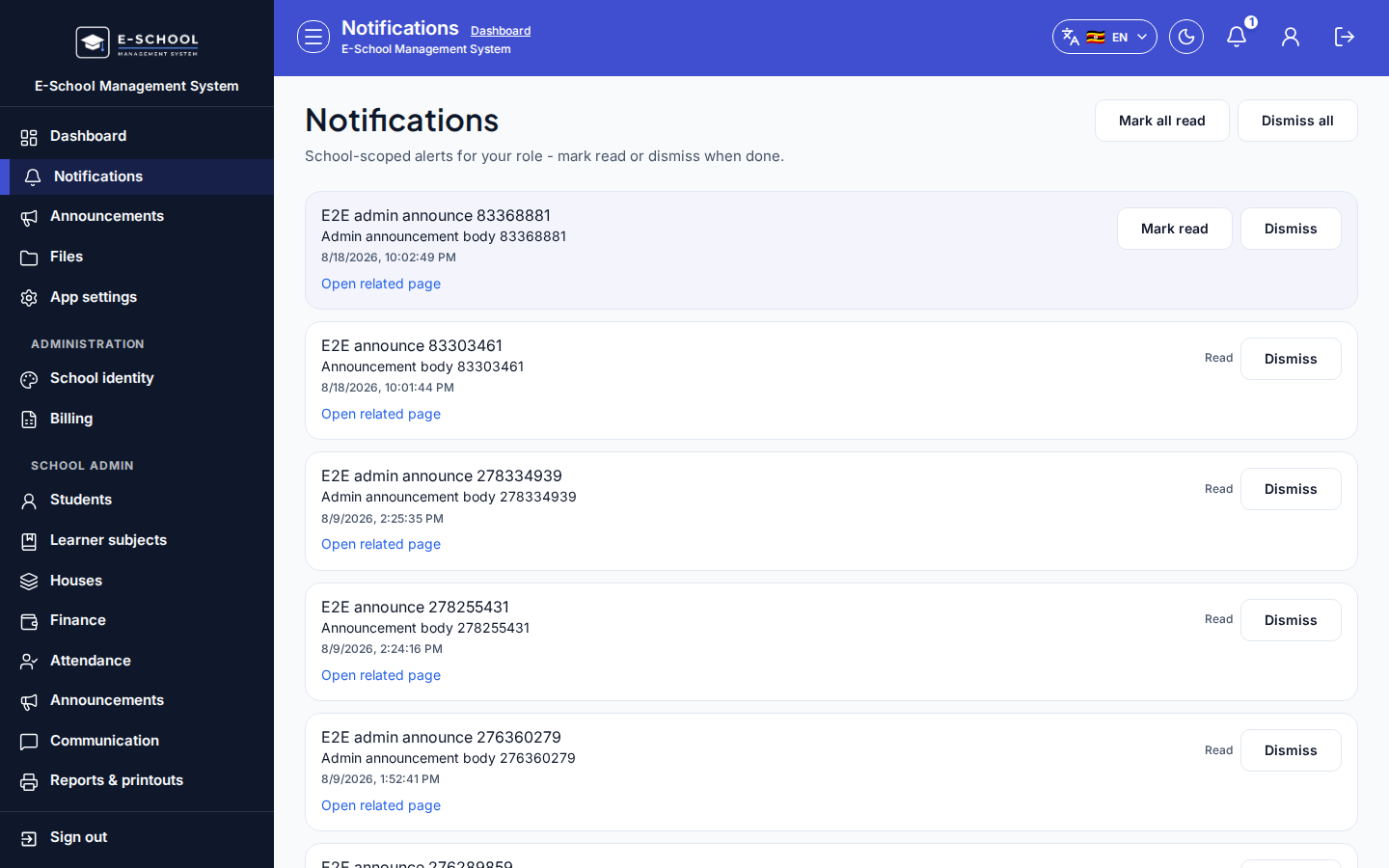
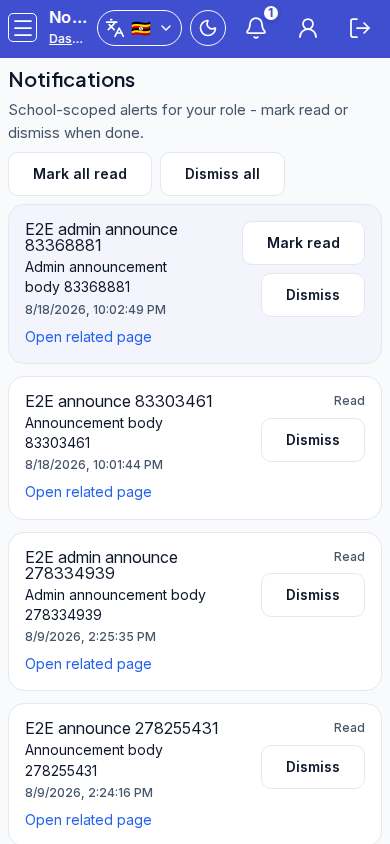
Steps
- Open Notifications at
/notifications. - Open an item or use Open related page.
- Mark read / Mark all read, or Dismiss / Dismiss all.
- If empty, Go to dashboard and continue work.
- Turn on browser notifications under App settings when you need OS alerts.
Fields and actions
- Mark all read, Dismiss all, Mark read, Dismiss, Open related page
- Empty CTA: Go to dashboard
Common mistakes
- Clearing the inbox without following fee/admission links
- Confusing this list with SMS delivery status